> ## Documentation Index
> Fetch the complete documentation index at: https://laminar.sh/docs/llms.txt
> Use this file to discover all available pages before exploring further.
# Skyvern observability
> Trace Skyvern workflows and watch the browser session recording synced to each step, prompt, and screenshot in Laminar.
## Overview
[Skyvern](https://github.com/Skyvern-AI/skyvern) is an open-source browser automation framework that uses LLMs and Computer Vision to automate browser-based workflows.
Laminar provides comprehensive instrumentation of Skyvern with all core functions being traced automatically. This includes full browser session recordings that capture every interaction, making it immensely valuable for debugging failed workflows and evaluating automation performance.
Laminar excels at tracing AI-powered browser automation by providing visibility into LLM decision-making processes, browser interaction outcomes, and complete session recordings synchronized with execution steps.
## Quickstart
To trace Skyvern workflows with Laminar, **initialize Laminar at the top of your project**. This will automatically capture LLM calls, browser session recordings, and workflow execution details.
```python {3-4} {8-12} {14-15} theme={null}
from skyvern import Skyvern
import asyncio
from lmnr import Laminar
from dotenv import load_dotenv
load_dotenv()
# Initialize Laminar
# This will automatically trace all Skyvern functions
Laminar.initialize()
skyvern = Skyvern()
async def main():
task = await skyvern.run_task(
prompt="go to lmnr.ai, summarize the pricing page."
)
print(task)
if __name__ == "__main__":
asyncio.run(main())
```
`LaminarLiteLLMCallback` is deprecated and unnecessary. Laminar instruments LiteLLM directly.
## View a Skyvern trace
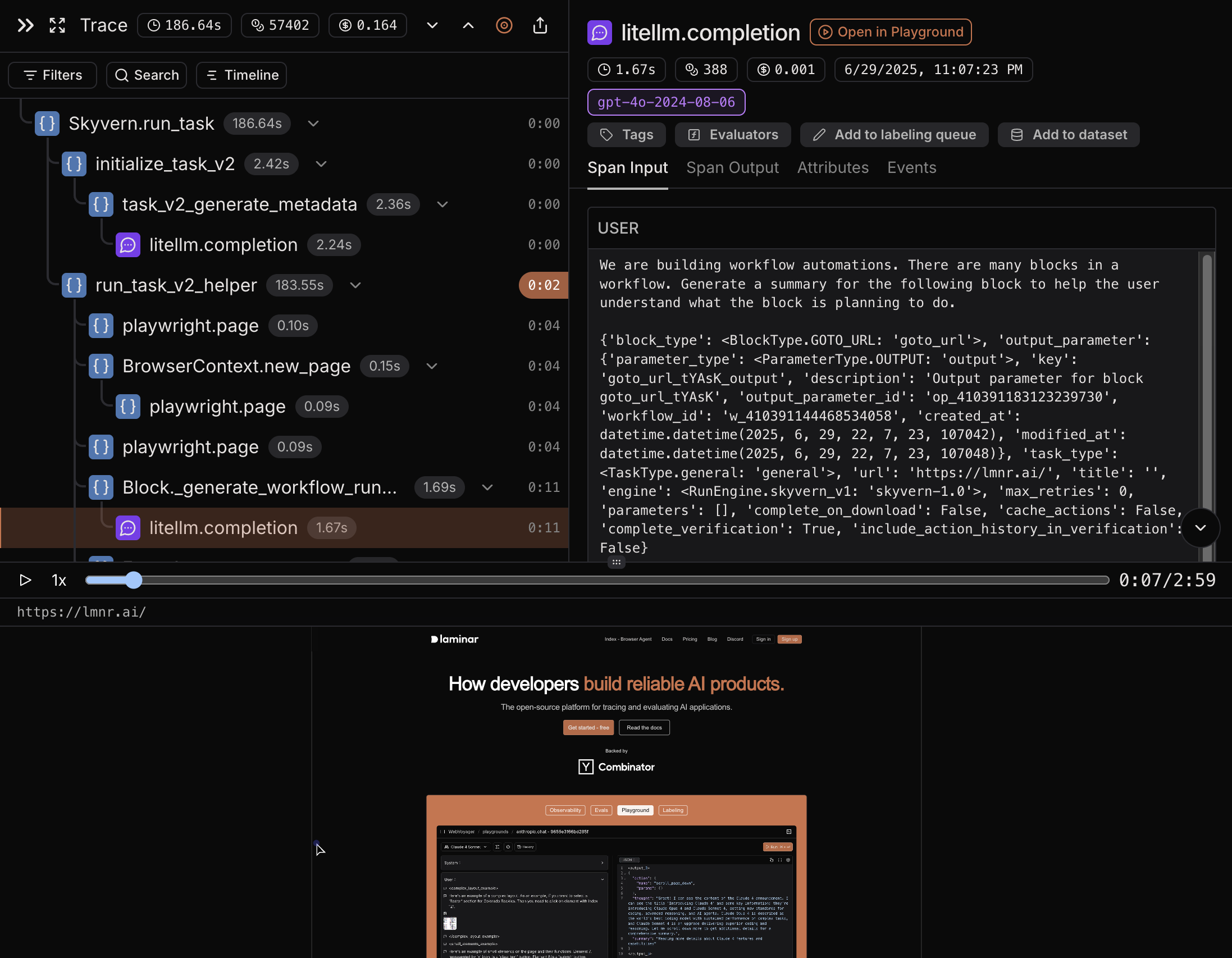
You can view Skyvern traces in the Laminar UI by navigating to the traces tab in your project. When you select a trace, you can see:
* **Browser Session Recording**: Full video recording of the browser window synchronized with execution steps - immensely valuable for debugging failed workflows and evaluating automation quality
* **LLM Interactions**: All prompts sent to the language model and their responses
* **Workflow Steps**: Sequential execution of tasks and their outcomes
* **Performance Metrics**: Latency, token usage, and cost
* **Image tracing**: Browser screenshots that were sent to LLM for analysis
* **Error Handling**: Exceptions and errors that occurred during the execution
The trace timeline shows the complete workflow execution with synchronized browser recordings, making it easy to debug issues, understand failure points, and optimize performance. It matters most for evaluations, where you can visually verify whether the automation achieved the intended outcome.
## Related integrations
Trace Browser Use agents with synced session recordings.
Trace Stagehand runs with synced session recordings.
Record Playwright browser sessions alongside your traces.
Trace computer-using agents running on Kernel browsers.
Trace the OpenAI SDK directly in TypeScript and Python.
Browse every provider, framework, coding agent, and browser integration Laminar supports.