> ## Documentation Index
> Fetch the complete documentation index at: https://laminar.sh/docs/llms.txt
> Use this file to discover all available pages before exploring further.
# Labeling Queues
Labeling queues turn raw agent traces, dataset rows, or SQL query results into datasets of labeled examples. Humans review each item, edit the target, approve what looks right, discard what doesn't, and push the approved batch into a dataset when they're ready.
 ## How the queue works
A queue holds items that share the shape of a dataset datapoint: a `data` object, a `target`, and optional `metadata`. You move through items one at a time; each item lives in one of three states:
* **New**: seeded from the source and not yet touched.
* **Modified**: the target has been edited. Edits save automatically; no approval yet.
* **Approved**: explicitly signed off. Approved items are what you push to a dataset by default.
Pushing to a dataset is a separate action. Edits and approvals persist in the queue until you push or discard, so multiple people can label in parallel and a single session can span days.
## The interface
### The navigator bar
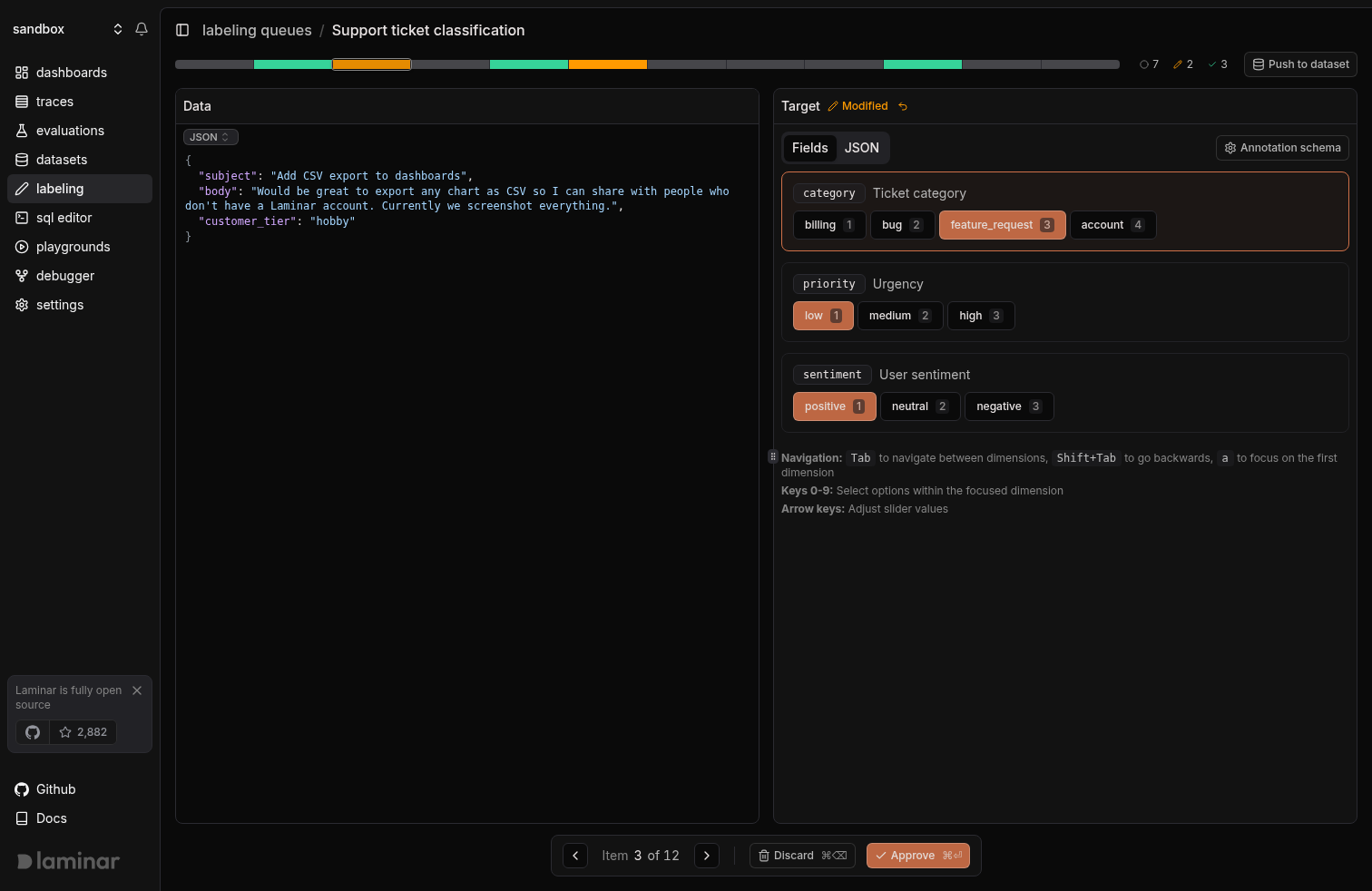
The colored bar at the top of the page is both a progress overview and the primary way to jump around the queue. Each item gets one segment: muted for new, amber for modified, green for approved. The counters on the right show the totals. Click or drag anywhere on the bar to jump to that item, which is useful for coming back to the first modified item or spot-checking your approvals before a push.
### Data panel
The left panel shows the current item's full payload (`data`, `target`, `metadata`). It's read-only: the ground truth you're labeling against.
### Target panel
The right panel is where you write the label. Two tabs:
* **JSON**: the raw JSON written to the `target` field. Syntax-highlighted; invalid JSON disables the Approve button.
* **Fields**: if you've defined an annotation schema, the queue renders a structured form (string, number, boolean, enum) with `1`–`9` hotkeys. Tab moves between fields, arrow keys adjust sliders, `a` focuses the first field.
The two tabs are different views of the same target. Edit in either and the other updates in place. If the stored target doesn't fit the schema (extra keys, wrong type), a banner appears on the Fields tab and a dot on the JSON tab so you can jump to the raw view.
### Approval status and revert
Once you edit an item, a **Modified** badge appears next to the Target header with an undo button that drops your edits back to the original target. Approving clears the modified state; unapproving returns the item to modified so you can edit again.
## Labeling an item
Read the payload on the left. If the queue was seeded from a span, `data` holds the span input and `target` holds the span output.
Fix the JSON on the right, or fill out the structured fields if a schema is defined. Edits save automatically after a short debounce.
* **Approve** (`⌘⏎`) signs the item off and advances to the next one.
* **Discard** (`⌘⌫`) removes the item from the queue entirely.
* **Prev / Next** (`⌘←` / `⌘→`) navigates without committing, which is useful for comparing similar items.
When you're done labeling (or want to checkpoint progress), click **Push to dataset** in the top right.
### Keyboard shortcuts
| Shortcut | Action |
| ------------------- | ----------------------------------------------- |
| `⌘⏎` | Approve current / unapprove if already approved |
| `⌘⌫` | Discard current |
| `⌘←` / `⌘→` | Previous / next item |
| `Tab` / `Shift+Tab` | Move between fields (Fields tab) |
| `1`–`9` | Select option in focused field |
| `a` | Focus the first field |
`⌘⏎` also fires inside the JSON editor and text inputs, so you can approve without blurring first.
## Push to a dataset
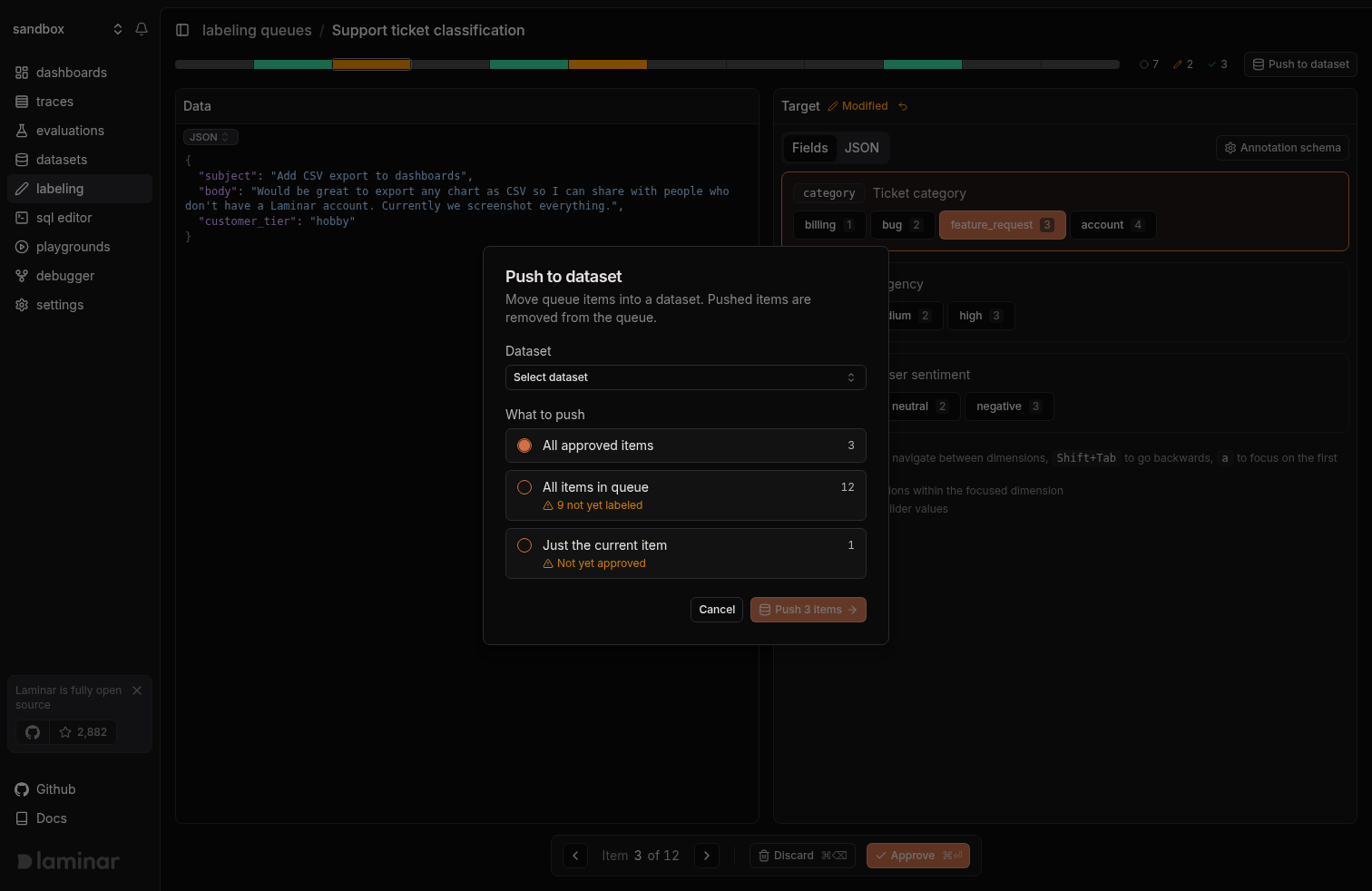
Push is always an explicit action. Open the **Push to dataset** dialog, pick a target dataset, then choose the scope:
* **All approved items**: the default. Pushes every item currently in the `Approved` state.
* **All items in queue**: pushes everything regardless of approval. Unapproved items carry whatever target they currently hold.
* **Just the current item**: pushes only the item you're viewing.
Pushed items are removed from the queue in the same operation. Each item becomes a datapoint in the target dataset with the same `data` / `target` / `metadata` shape.
## How the queue works
A queue holds items that share the shape of a dataset datapoint: a `data` object, a `target`, and optional `metadata`. You move through items one at a time; each item lives in one of three states:
* **New**: seeded from the source and not yet touched.
* **Modified**: the target has been edited. Edits save automatically; no approval yet.
* **Approved**: explicitly signed off. Approved items are what you push to a dataset by default.
Pushing to a dataset is a separate action. Edits and approvals persist in the queue until you push or discard, so multiple people can label in parallel and a single session can span days.
## The interface
### The navigator bar
The colored bar at the top of the page is both a progress overview and the primary way to jump around the queue. Each item gets one segment: muted for new, amber for modified, green for approved. The counters on the right show the totals. Click or drag anywhere on the bar to jump to that item, which is useful for coming back to the first modified item or spot-checking your approvals before a push.
### Data panel
The left panel shows the current item's full payload (`data`, `target`, `metadata`). It's read-only: the ground truth you're labeling against.
### Target panel
The right panel is where you write the label. Two tabs:
* **JSON**: the raw JSON written to the `target` field. Syntax-highlighted; invalid JSON disables the Approve button.
* **Fields**: if you've defined an annotation schema, the queue renders a structured form (string, number, boolean, enum) with `1`–`9` hotkeys. Tab moves between fields, arrow keys adjust sliders, `a` focuses the first field.
The two tabs are different views of the same target. Edit in either and the other updates in place. If the stored target doesn't fit the schema (extra keys, wrong type), a banner appears on the Fields tab and a dot on the JSON tab so you can jump to the raw view.
### Approval status and revert
Once you edit an item, a **Modified** badge appears next to the Target header with an undo button that drops your edits back to the original target. Approving clears the modified state; unapproving returns the item to modified so you can edit again.
## Labeling an item
Read the payload on the left. If the queue was seeded from a span, `data` holds the span input and `target` holds the span output.
Fix the JSON on the right, or fill out the structured fields if a schema is defined. Edits save automatically after a short debounce.
* **Approve** (`⌘⏎`) signs the item off and advances to the next one.
* **Discard** (`⌘⌫`) removes the item from the queue entirely.
* **Prev / Next** (`⌘←` / `⌘→`) navigates without committing, which is useful for comparing similar items.
When you're done labeling (or want to checkpoint progress), click **Push to dataset** in the top right.
### Keyboard shortcuts
| Shortcut | Action |
| ------------------- | ----------------------------------------------- |
| `⌘⏎` | Approve current / unapprove if already approved |
| `⌘⌫` | Discard current |
| `⌘←` / `⌘→` | Previous / next item |
| `Tab` / `Shift+Tab` | Move between fields (Fields tab) |
| `1`–`9` | Select option in focused field |
| `a` | Focus the first field |
`⌘⏎` also fires inside the JSON editor and text inputs, so you can approve without blurring first.
## Push to a dataset
Push is always an explicit action. Open the **Push to dataset** dialog, pick a target dataset, then choose the scope:
* **All approved items**: the default. Pushes every item currently in the `Approved` state.
* **All items in queue**: pushes everything regardless of approval. Unapproved items carry whatever target they currently hold.
* **Just the current item**: pushes only the item you're viewing.
Pushed items are removed from the queue in the same operation. Each item becomes a datapoint in the target dataset with the same `data` / `target` / `metadata` shape.
 ## Add items to a queue
### From a span
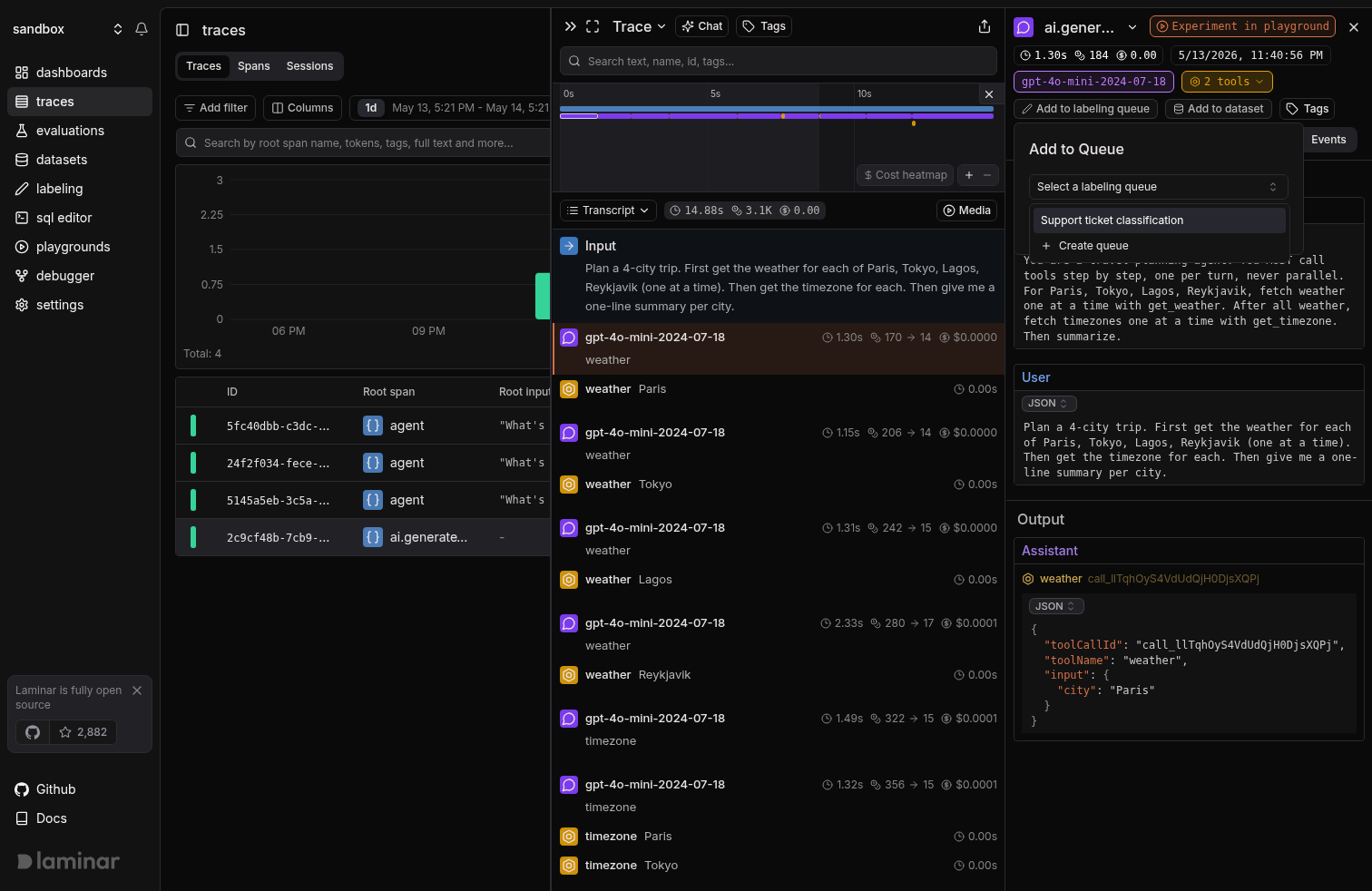
Open a span in the trace view and use **Add to labeling queue**. The span's input becomes the item's `data`, its output becomes the `target`. Good for capturing real agent behavior you want a human to correct.
## Add items to a queue
### From a span
Open a span in the trace view and use **Add to labeling queue**. The span's input becomes the item's `data`, its output becomes the `target`. Good for capturing real agent behavior you want a human to correct.
 ### From a dataset
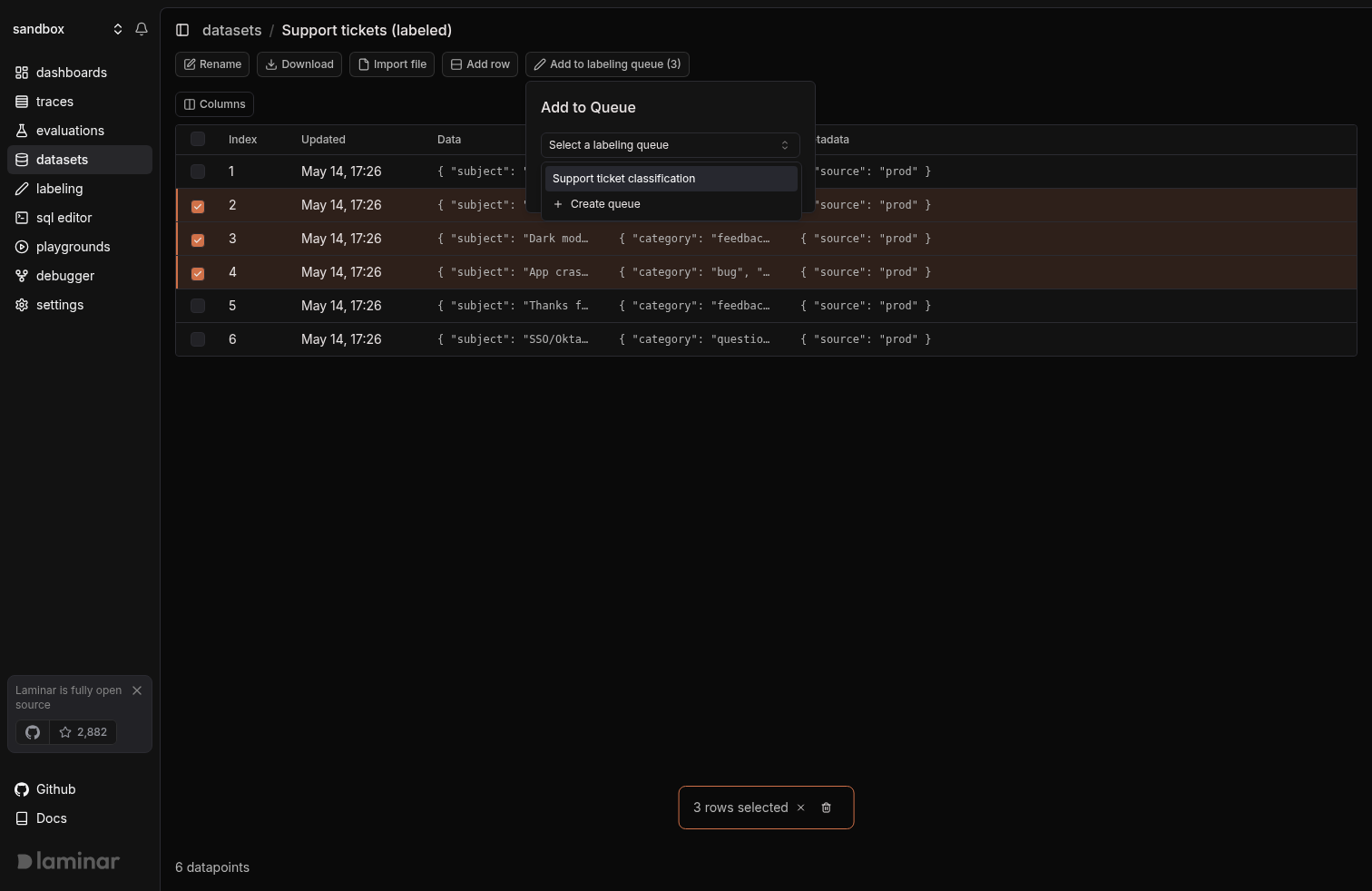
Select one or more datapoints in a dataset and push them into a queue. The datapoint's `data` / `target` / `metadata` map directly onto the queue item.
### From a dataset
Select one or more datapoints in a dataset and push them into a queue. The datapoint's `data` / `target` / `metadata` map directly onto the queue item.
 ### From the SQL editor
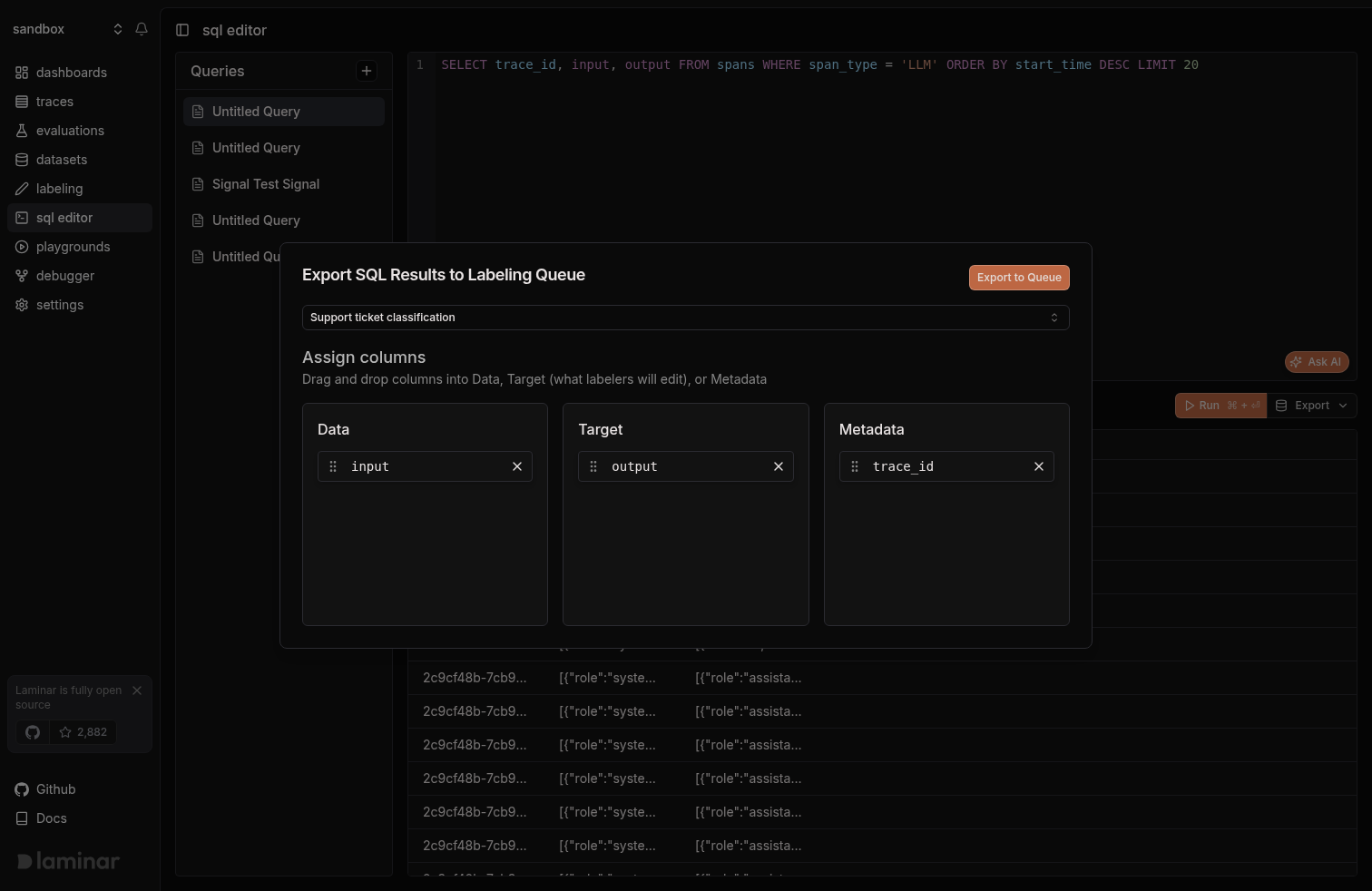
Run any query in the [SQL editor](/platform/sql-editor), then open **Export → Export to Labeling Queue**. Drag each result column into **Data**, **Target**, or **Metadata** and push. This is the fastest way to turn a slice of real traces into a labeling batch: filter to the failures you care about in SQL, ship them to a queue, label them.
### From the SQL editor
Run any query in the [SQL editor](/platform/sql-editor), then open **Export → Export to Labeling Queue**. Drag each result column into **Data**, **Target**, or **Metadata** and push. This is the fastest way to turn a slice of real traces into a labeling batch: filter to the failures you care about in SQL, ship them to a queue, label them.
 ### Via API
`POST https://api.lmnr.ai/v1/labeling_queues/{queue_id}/items` adds items programmatically. See [API reference](#api-reference) below.
## Annotation schemas
An annotation schema turns the Target tab into a structured form so labelers can work at keyboard speed. Define fields in the queue settings; each field has a `key`, a `type` (`string`, `number`, `boolean`, `enum`), a description, and type-specific options (number `min`/`max`, enum `values`).
Schemas are a UI convenience. The target is still stored as JSON, and items without a schema are labeled via the JSON tab. You can define a schema on an existing queue and the Fields tab starts rendering immediately; items whose target drifts from the schema surface a banner in the form view.
## API reference
### Push items to a labeling queue
`POST https://api.lmnr.ai/v1/labeling_queues/{queue_id}/items`
Adds one or more items to an existing labeling queue. `queue_id` is the queue's UUID; find it in the URL of the queue page.
**Headers**
| Header | Value |
| --------------- | -------------------------- |
| `Authorization` | `Bearer ` |
| `Content-Type` | `application/json` |
**Body**
```json theme={null}
{
"items": [
{
"data": { ... },
"target": { ... },
"metadata": { ... },
"idempotencyKey": "optional-unique-string"
}
]
}
```
| Field | Type | Required | Description |
| ------------------------ | -------- | -------- | ----------------------------------------------------------------------------------------- |
| `items` | array | yes | One or more items to add. |
| `items[].data` | any JSON | yes | The input shown to the labeler. |
| `items[].target` | any JSON | yes | The initial target. Labelers edit this. |
| `items[].metadata` | object | no | Arbitrary JSON object carried alongside the item. |
| `items[].idempotencyKey` | string | no | A stable id for the item. Retrying with the same `(queue_id, idempotencyKey)` is a no-op. |
**Response**
`201 Created` with an array of the inserted items:
```json theme={null}
[
{ "id": "018f...-uuid", "createdAt": "2026-05-14T12:34:56.789Z" }
]
```
**Example**
```bash theme={null}
export QUEUE_ID=""
export LMNR_PROJECT_API_KEY=""
curl --location "https://api.lmnr.ai/v1/labeling_queues/${QUEUE_ID}/items" \
--header "Authorization: Bearer ${LMNR_PROJECT_API_KEY}" \
--header "Content-Type: application/json" \
--data-raw '{
"items": [
{
"data": {
"input": "What is the capital of France?",
"context": "Geography question"
},
"target": "Paris",
"metadata": { "model": "gpt-5.1" },
"idempotencyKey": "geo-capital-france-001"
}
]
}'
```
Use `idempotencyKey` when you're backfilling from a pipeline that might retry. Without it, a retry will insert a duplicate row; with it, the second write collapses onto the first.
## What's next
Push approved queue items into a dataset for evals or fine-tuning.
Filter to the traces you want labeled, then export them to a queue.
### Via API
`POST https://api.lmnr.ai/v1/labeling_queues/{queue_id}/items` adds items programmatically. See [API reference](#api-reference) below.
## Annotation schemas
An annotation schema turns the Target tab into a structured form so labelers can work at keyboard speed. Define fields in the queue settings; each field has a `key`, a `type` (`string`, `number`, `boolean`, `enum`), a description, and type-specific options (number `min`/`max`, enum `values`).
Schemas are a UI convenience. The target is still stored as JSON, and items without a schema are labeled via the JSON tab. You can define a schema on an existing queue and the Fields tab starts rendering immediately; items whose target drifts from the schema surface a banner in the form view.
## API reference
### Push items to a labeling queue
`POST https://api.lmnr.ai/v1/labeling_queues/{queue_id}/items`
Adds one or more items to an existing labeling queue. `queue_id` is the queue's UUID; find it in the URL of the queue page.
**Headers**
| Header | Value |
| --------------- | -------------------------- |
| `Authorization` | `Bearer ` |
| `Content-Type` | `application/json` |
**Body**
```json theme={null}
{
"items": [
{
"data": { ... },
"target": { ... },
"metadata": { ... },
"idempotencyKey": "optional-unique-string"
}
]
}
```
| Field | Type | Required | Description |
| ------------------------ | -------- | -------- | ----------------------------------------------------------------------------------------- |
| `items` | array | yes | One or more items to add. |
| `items[].data` | any JSON | yes | The input shown to the labeler. |
| `items[].target` | any JSON | yes | The initial target. Labelers edit this. |
| `items[].metadata` | object | no | Arbitrary JSON object carried alongside the item. |
| `items[].idempotencyKey` | string | no | A stable id for the item. Retrying with the same `(queue_id, idempotencyKey)` is a no-op. |
**Response**
`201 Created` with an array of the inserted items:
```json theme={null}
[
{ "id": "018f...-uuid", "createdAt": "2026-05-14T12:34:56.789Z" }
]
```
**Example**
```bash theme={null}
export QUEUE_ID=""
export LMNR_PROJECT_API_KEY=""
curl --location "https://api.lmnr.ai/v1/labeling_queues/${QUEUE_ID}/items" \
--header "Authorization: Bearer ${LMNR_PROJECT_API_KEY}" \
--header "Content-Type: application/json" \
--data-raw '{
"items": [
{
"data": {
"input": "What is the capital of France?",
"context": "Geography question"
},
"target": "Paris",
"metadata": { "model": "gpt-5.1" },
"idempotencyKey": "geo-capital-france-001"
}
]
}'
```
Use `idempotencyKey` when you're backfilling from a pipeline that might retry. Without it, a retry will insert a duplicate row; with it, the second write collapses onto the first.
## What's next
Push approved queue items into a dataset for evals or fine-tuning.
Filter to the traces you want labeled, then export them to a queue.