> ## Documentation Index
> Fetch the complete documentation index at: https://laminar.sh/docs/llms.txt
> Use this file to discover all available pages before exploring further.
# Reports
Laminar sends periodic summaries of [signal](/docs/signals/introduction) activity across every project in a workspace. Reports cover patterns you would miss when paging alert-by-alert: new failure modes, recurring issues, and signals whose volume changed.
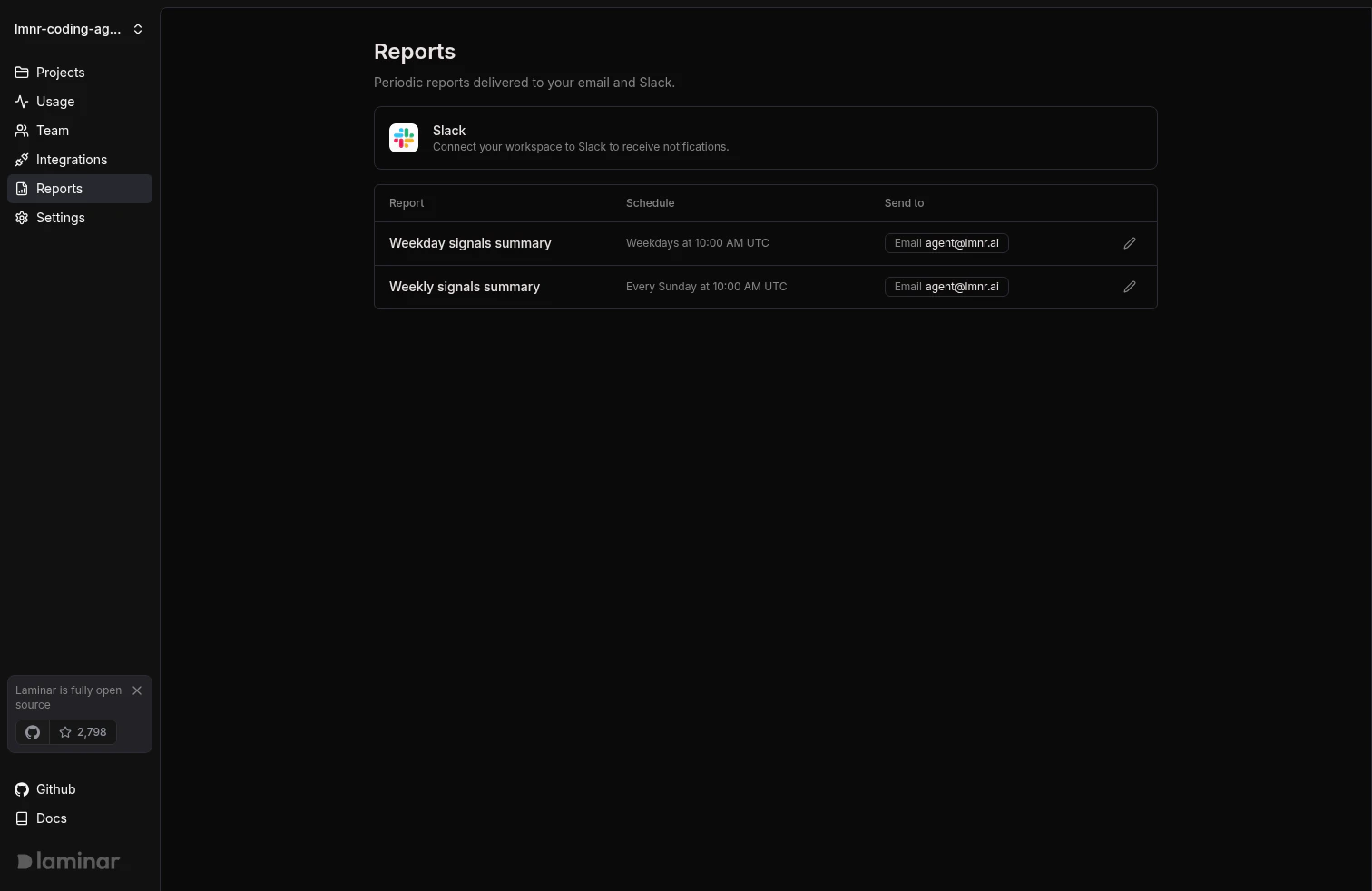 Reports live at the workspace level. Open **Workspace > Reports** to see every report configured for the workspace and who each one is sent to.
## Defaults on workspace creation
Every new workspace ships with two reports, both on by default:
* **Weekday signals summary**: delivered Monday through Friday at 10:00 AM UTC, summarizing signal activity from the previous day.
* **Weekly signals summary**: delivered Saturday at 10:00 AM UTC, summarizing the previous week.
The creator of the workspace is auto-subscribed by email to both reports. Other workspace members can subscribe themselves from the Reports page.
## What a report contains
Each report summarizes signal events across every project in the workspace for the report's time window. The summary includes:
* A per-signal event count for the period.
* An AI-generated narrative of recurring patterns and notable changes.
* A short list of noteworthy events with links into the source traces.
## Notification channels
Every report posts to the in-app notification center by default. Slack and email are optional and configured per report.
### In-app notifications
The notification bell in the project sidebar shows a card for each recent report alongside signal alerts. Each report card expands to show the AI summary and noteworthy events. Trace links jump straight to the source trace.
In-app display of reports is scoped to daily-style reports. Weekly reports are delivered to Slack and email only to avoid duplicating information already shown by the daily report.
### Slack
Reports can post to a single Slack channel per report. Slack messages include the same per-signal counts, AI summary, and noteworthy events as the email. Connect Slack from **Workspace > Integrations** (see [Slack integration](/docs/platform/integrations)) or from the Reports page.
### Email
Each workspace member manages their own email subscription. Subscribing adds your workspace email address to the report's target list; unsubscribing removes it. Other subscribers are unaffected.
## Manage a report
1. Open **Workspace > Reports**.
2. Click the pencil icon on the row for the report you want to change.
3. In the side sheet:
* **Slack channel**: pick a channel or clear the selection to stop posting to Slack.
* **Email**: toggle to subscribe or unsubscribe *your own* email address.
4. Click **Save**.
Report schedules are fixed. Only the notification targets are user-configurable.
## Reports vs. alerts
Reports send periodic rollups across an entire workspace. [Alerts](/docs/signals/alerts) fire on individual signal events or new clusters within a single project. Use reports for a regular pulse; use alerts to page on things you need to see now.
## Next steps
Page on individual signal events and new clusters.
Connect Slack so reports can post to a channel.
Reports live at the workspace level. Open **Workspace > Reports** to see every report configured for the workspace and who each one is sent to.
## Defaults on workspace creation
Every new workspace ships with two reports, both on by default:
* **Weekday signals summary**: delivered Monday through Friday at 10:00 AM UTC, summarizing signal activity from the previous day.
* **Weekly signals summary**: delivered Saturday at 10:00 AM UTC, summarizing the previous week.
The creator of the workspace is auto-subscribed by email to both reports. Other workspace members can subscribe themselves from the Reports page.
## What a report contains
Each report summarizes signal events across every project in the workspace for the report's time window. The summary includes:
* A per-signal event count for the period.
* An AI-generated narrative of recurring patterns and notable changes.
* A short list of noteworthy events with links into the source traces.
## Notification channels
Every report posts to the in-app notification center by default. Slack and email are optional and configured per report.
### In-app notifications
The notification bell in the project sidebar shows a card for each recent report alongside signal alerts. Each report card expands to show the AI summary and noteworthy events. Trace links jump straight to the source trace.
In-app display of reports is scoped to daily-style reports. Weekly reports are delivered to Slack and email only to avoid duplicating information already shown by the daily report.
### Slack
Reports can post to a single Slack channel per report. Slack messages include the same per-signal counts, AI summary, and noteworthy events as the email. Connect Slack from **Workspace > Integrations** (see [Slack integration](/docs/platform/integrations)) or from the Reports page.
### Email
Each workspace member manages their own email subscription. Subscribing adds your workspace email address to the report's target list; unsubscribing removes it. Other subscribers are unaffected.
## Manage a report
1. Open **Workspace > Reports**.
2. Click the pencil icon on the row for the report you want to change.
3. In the side sheet:
* **Slack channel**: pick a channel or clear the selection to stop posting to Slack.
* **Email**: toggle to subscribe or unsubscribe *your own* email address.
4. Click **Save**.
Report schedules are fixed. Only the notification targets are user-configurable.
## Reports vs. alerts
Reports send periodic rollups across an entire workspace. [Alerts](/docs/signals/alerts) fire on individual signal events or new clusters within a single project. Use reports for a regular pulse; use alerts to page on things you need to see now.
## Next steps
Page on individual signal events and new clusters.
Connect Slack so reports can post to a channel.