> ## Documentation Index
> Fetch the complete documentation index at: https://laminar.sh/docs/llms.txt
> Use this file to discover all available pages before exploring further.
# Observability for computer-using agents on Kernel
## Overview
[Kernel](https://onkernel.com/) is a platform that provides infrastructure for
running browser and computer using agents. You can run your browser agents on
Kernel to get top tier performance and developer experience. Kernel's SDKs
are tightly integrated with Laminar, allowing you to trace your agents down
to the LLM calls and browser/computer actions.
A version of this guide is available in [Kernel's documentation](https://www.onkernel.com/docs/integrations/laminar).
## Advantages of using Kernel
* Reliable infrastructure and quick computer startup times.
* It's [open source](https://github.com/onkernel/kernel-images)!
* Reusable sessions, cookies, browser history and more.
* Stealth mode for browser automation avoids blockers and CAPTCHAs.
* Framework agnostic automations – you can use any browser framework you want.
## Prerequisites
1. A [Kernel](https://dashboard.onkernel.com/sign-up) account.
2. A [Laminar](https://laminar.sh) account or a [self-hosted instance](https://github.com/lmnr-ai/lmnr).
3. API keys for both Kernel and Laminar set as `KERNEL_API_KEY` and `LMNR_PROJECT_API_KEY` environment variables.
## Getting Started
### Installation
```bash theme={null}
npm install @lmnr-ai/lmnr@latest @onkernel/sdk@latest
```
```bash theme={null}
pip install -U 'lmnr[all]' kernel
```
### Setting up API keys
1. Signup on the [Kernel dashboard](https://dashboard.onkernel.com/sign-up).
2. Create an API key during the onboarding process or in the [API keys page](https://dashboard.onkernel.com/api-keys).
3. Store the API key in the `KERNEL_API_KEY` environment variable.
4. Create a Laminar project.
5. Navigate to the project settings and create a new project API key.
```sh theme={null}
export KERNEL_API_KEY=
export LMNR_PROJECT_API_KEY=
```
## Running agents on Kernel
### Browser Use
Laminar provides observability for Browser Use and Kernel, so if you host your Browser Use agents on Kernel,
you will get full observability of both the browser agent and the computer interactions.
[Full guide on browser-use integration](/tracing/integrations/browser-use)
```python {7-8, 11-16, 22, 49-50} theme={null}
import os
import asyncio
from lmnr import Laminar, observe
from browser_use import Agent, Browser, ChatGoogle
from kernel import Kernel
# Initialize Laminar
Laminar.initialize(project_api_key=os.environ["LMNR_PROJECT_API_KEY"])
@observe()
async def main():
# Initialize Kernel and create a browser
client = Kernel()
kernel_browser = client.browsers.create(
stealth=True,
viewport={'width': 1920, 'height': 1080},
)
print(f"Live view url: {kernel_browser.browser_live_view_url}")
# Configure Browser Use with Kernel's CDP URL
browser = Browser(
cdp_url=kernel_browser.cdp_ws_url,
headless=False,
window_size={'width': 1920, 'height': 1080},
viewport={'width': 1920, 'height': 1080},
device_scale_factor=1.0
)
# Initialize the model. Don't forget to set GOOGLE_API_KEY env variable.
llm = ChatGoogle(
model="gemini-2.5-flash",
)
# Create and run the agent with job extraction task
agent = Agent(
task="""
Go to duckduckgo.com and search for "browser agent observability".
""",
llm=llm,
browser_session=browser
)
result = await agent.run()
print(f"Job URLs found:\n{result.final_result()}")
# Delete the browser for those who left open the live view url
client.browsers.delete_by_id(kernel_browser.session_id)
asyncio.run(main())
# Flush traces to Laminar
Laminar.flush()
```
### Playwright
You can use Laminar to trace your Playwright browser sessions hosted on Kernel.
```javascript {7-12, 15-16, 19-22, 26, 53} theme={null}
import { Laminar } from '@lmnr-ai/lmnr';
import Kernel from '@onkernel/sdk';
import { chromium } from 'playwright';
// Initialize Laminar with Playwright and Kernel instrumentations
Laminar.initialize({
instrumentModules: {
playwright: {
chromium
},
kernel: Kernel
}
});
// Initialize Kernel and create a cloud browser
const kernel = new Kernel();
const main = async () => {
const kernelBrowser = await kernel.browsers.create({
stealth: true,
});
console.log("Live view url:", kernelBrowser.browser_live_view_url);
// Connect Playwright to Kernel's browser via CDP
const browser = await chromium.connectOverCDP(kernelBrowser.cdp_ws_url);
// Use existing context and page or create a new one
const context = browser.contexts()[0] || (await browser.newContext());
const page = context.pages()[0] || (await context.newPage());
// Your automation code
await page.goto('https://www.duckduckgo.com/')
await page.waitForTimeout(2000)
await page.goto('https://www.github.com/trending');
// Wait for 2 seconds
await page.waitForTimeout(2000);
// Extract all trending repos
const trendingRepos = await page.locator("h2 a.Link").evaluateAll((repos) =>
repos.map((repo) => repo.textContent.trim().replace(/[\n\s]/g, ''))
);
console.log('Trending repos:', trendingRepos);
await page.waitForTimeout(2000);
// Clean up the browser and flush traces to Laminar
await browser.close();
await Laminar.flush();
// Delete the browser
await kernel.browsers.deleteByID(kernelBrowser.session_id);
}
main().catch(console.error);
```
```python {11-13,19, 49-50} theme={null}
import asyncio
from playwright.async_api import async_playwright
from lmnr import Laminar, observe
from kernel import Kernel
# Initialize Laminar
Laminar.initialize()
@observe()
async def main():
kernel_client = Kernel()
kernel_browser = kernel_client.browsers.create(stealth=True)
cdp_url = kernel_browser.cdp_ws_url
print(f"Live view url: {kernel_browser.browser_live_view_url}")
async with async_playwright() as p:
# Connect to Kernel's browser via CDP
browser = await p.chromium.connect_over_cdp(cdp_url)
# Use existing context and page or create a new one
context = (
browser.contexts[0]
if browser.contexts
else await browser.new_context()
)
page = context.pages[0] if context.pages else await context.new_page()
# Your automation code
await page.goto('https://www.duckduckgo.com/')
await page.wait_for_timeout(2000)
await page.goto('https://www.github.com/trending')
await page.wait_for_timeout(2000)
# Extract all trending repos
trending_repos = await page.locator("h2 a.Link").evaluate_all(r"""
(repos) =>
repos.map((repo) =>
repo.textContent.trim().replace(/[\n\s]/g, '')
)
""")
print('Trending repos:', trending_repos)
await page.wait_for_timeout(2000)
# Clean up the browser
await browser.close()
# Delete the browser
kernel_client.browsers.delete_by_id(kernel_browser.session_id)
asyncio.run(main())
Laminar.flush()
```
## Deploying Kernel apps and using Kernel's Computer and Process APIs
When you use Kernel's [App platform](https://www.onkernel.com/docs/apps/develop)
or use their [Computer controls](https://www.onkernel.com/docs/browsers/computer-controls),
Laminar will trace the computer and process interactions.
In addition, you don't have to `observe` your kernel `app.actions` and worry about manual trace flushing inside your Kernel apps.
Laminar will take care of trace lifecycle automatically.
As a result of the example below, you will see the following in the Laminar UI:
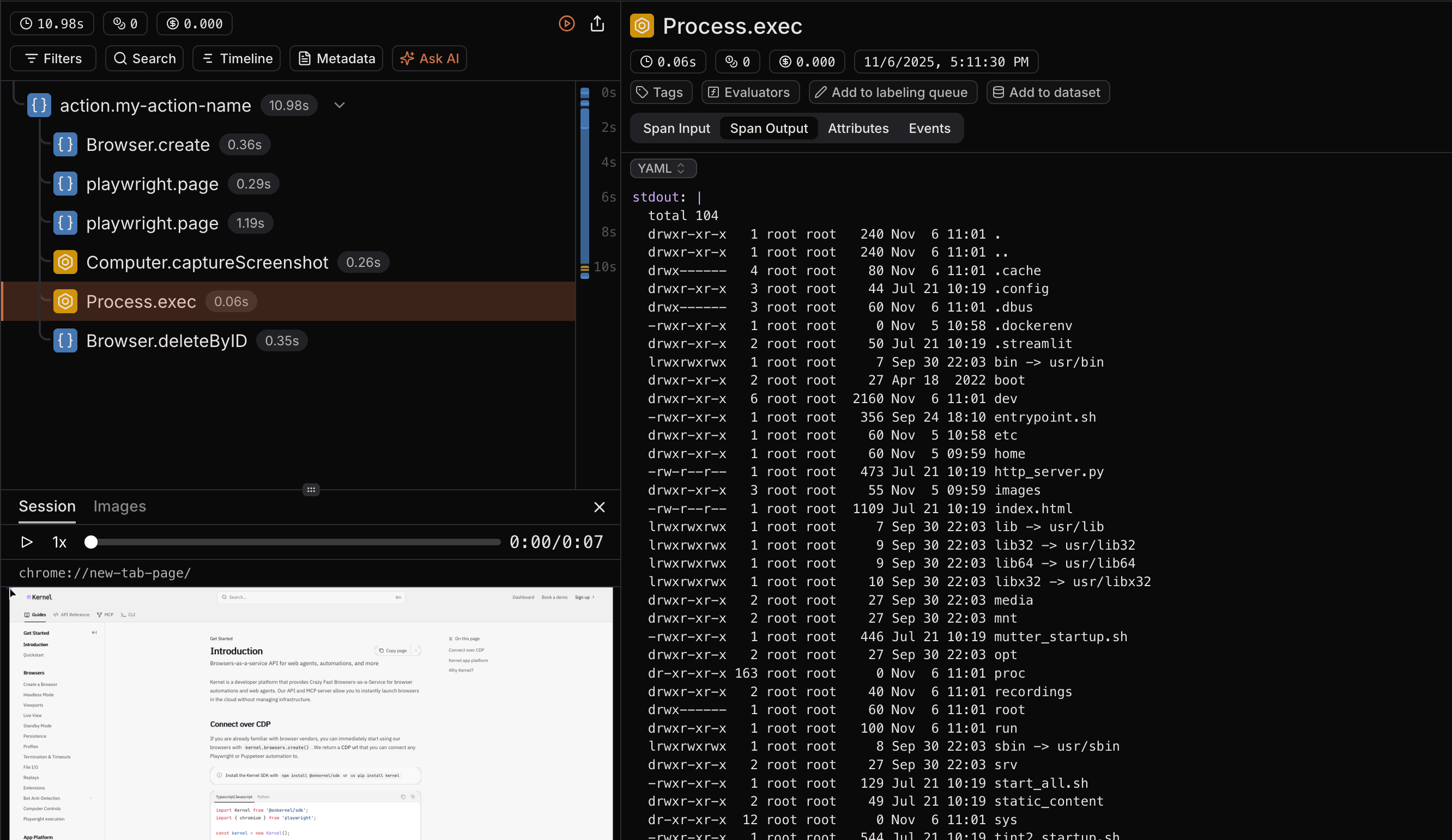 ### Example Kernel app with Laminar tracing
To deploy this example on Kernel, follow the steps in [Kernel's documentation](https://www.onkernel.com/docs/apps/deploy).
```javascript theme={null}
import { Laminar } from '@lmnr-ai/lmnr';
import { chromium } from 'playwright';
import { config } from 'dotenv';
import Kernel, { type KernelContext } from "@onkernel/sdk";
config();
Laminar.initialize({
instrumentModules: {
playwright: {
chromium,
},
kernel: Kernel,
}
});
const kernel = new Kernel();
const app = kernel.app('my-app-name');
app.action('my-action', async (ctx: KernelContext, payload) => {
const kernelBrowser = await kernel.browsers.create({
invocation_id: ctx.invocation_id,
});
const browser = await chromium.connectOverCDP(kernelBrowser.cdp_ws_url);
const context = browser.contexts[0] || (await browser.newContext());
const page = context.pages[0] || (await context.newPage());
// Your automation code
await page.goto('https://www.duckduckgo.com/')
await page.waitForTimeout(2000)
await page.goto('https://www.github.com/trending');
// Wait for 2 seconds
await page.waitForTimeout(2000);
// Extract all trending repos
const trendingRepos = await page.locator("h2 a.Link").evaluateAll((repos) =>
repos.map((repo) => repo.textContent.trim().replace(/[\n\s]/g, ''))
);
console.log('Trending repos:', trendingRepos);
await page.waitForTimeout(2000);
// Computer tool call
await kernel.browsers.computer.captureScreenshot(
kernelBrowser.session_id,
);
// Process tool call
await kernel.browsers.process.exec(
kernelBrowser.session_id,
{
command: 'ls',
args: ['-la'],
}
)
await browser.close();
await kernel.browsers.deleteByID(kernelBrowser.session_id);
});
```
```python theme={null}
from lmnr import Laminar
from playwright.async_api import async_playwright
from kernel import App, Kernel, KernelContext
# Initialize Laminar
Laminar.initialize()
kernel_client = Kernel()
app = App("my-app-name")
@app.action(name="my-action")
async def run_automation(ctx: KernelContext):
# Connect Playwright to Kernel's browser
async with async_playwright() as p:
kernel_browser = kernel_client.browsers.create(
invocation_id=ctx.invocation_id
)
browser = await p.chromium.connect_over_cdp(kernel_browser.cdp_ws_url)
context = (
browser.contexts[0]
if browser.contexts
else await browser.new_context()
)
page = context.pages[0] if context.pages else await context.new_page()
# Your automation code
await page.goto('https://www.duckduckgo.com/')
await page.wait_for_timeout(2000)
await page.goto('https://www.github.com/trending')
await page.wait_for_timeout(2000)
# Extract all trending repos
trending_repos = await page.locator("h2 a.Link").evaluate_all(r"""
(repos) =>
repos.map((repo) =>
repo.textContent.trim().replace(/[\n\s]/g, '')
)
""")
print('Trending repos:', trending_repos)
kernel_client.browsers.process.exec(
id=kernel_browser.session_id,
command="ls",
args=["-la"],
)
kernel_client.browsers.computer.move_mouse(
id=kernel_browser.session_id,
x=100,
y=100,
)
# Wait for 3 seconds
await page.wait_for_timeout(3000)
# Clean up the browser
await browser.close()
# Delete the browser for those who left open the Kernel live view url
kernel_client.browsers.delete_by_id(kernel_browser.session_id)
print("Done")
```
## Next steps
* Understand [session replay for browser agents](/tracing/browser-agent-observability) in more detail.
* Learn about [Profiles](https://www.onkernel.com/docs/browsers/profiles) in Kernel to persist browser state between runs.
* Learn about calling playwright [directly](https://www.onkernel.com/docs/browsers/playwright-execution) through Kernel's API.
### Example Kernel app with Laminar tracing
To deploy this example on Kernel, follow the steps in [Kernel's documentation](https://www.onkernel.com/docs/apps/deploy).
```javascript theme={null}
import { Laminar } from '@lmnr-ai/lmnr';
import { chromium } from 'playwright';
import { config } from 'dotenv';
import Kernel, { type KernelContext } from "@onkernel/sdk";
config();
Laminar.initialize({
instrumentModules: {
playwright: {
chromium,
},
kernel: Kernel,
}
});
const kernel = new Kernel();
const app = kernel.app('my-app-name');
app.action('my-action', async (ctx: KernelContext, payload) => {
const kernelBrowser = await kernel.browsers.create({
invocation_id: ctx.invocation_id,
});
const browser = await chromium.connectOverCDP(kernelBrowser.cdp_ws_url);
const context = browser.contexts[0] || (await browser.newContext());
const page = context.pages[0] || (await context.newPage());
// Your automation code
await page.goto('https://www.duckduckgo.com/')
await page.waitForTimeout(2000)
await page.goto('https://www.github.com/trending');
// Wait for 2 seconds
await page.waitForTimeout(2000);
// Extract all trending repos
const trendingRepos = await page.locator("h2 a.Link").evaluateAll((repos) =>
repos.map((repo) => repo.textContent.trim().replace(/[\n\s]/g, ''))
);
console.log('Trending repos:', trendingRepos);
await page.waitForTimeout(2000);
// Computer tool call
await kernel.browsers.computer.captureScreenshot(
kernelBrowser.session_id,
);
// Process tool call
await kernel.browsers.process.exec(
kernelBrowser.session_id,
{
command: 'ls',
args: ['-la'],
}
)
await browser.close();
await kernel.browsers.deleteByID(kernelBrowser.session_id);
});
```
```python theme={null}
from lmnr import Laminar
from playwright.async_api import async_playwright
from kernel import App, Kernel, KernelContext
# Initialize Laminar
Laminar.initialize()
kernel_client = Kernel()
app = App("my-app-name")
@app.action(name="my-action")
async def run_automation(ctx: KernelContext):
# Connect Playwright to Kernel's browser
async with async_playwright() as p:
kernel_browser = kernel_client.browsers.create(
invocation_id=ctx.invocation_id
)
browser = await p.chromium.connect_over_cdp(kernel_browser.cdp_ws_url)
context = (
browser.contexts[0]
if browser.contexts
else await browser.new_context()
)
page = context.pages[0] if context.pages else await context.new_page()
# Your automation code
await page.goto('https://www.duckduckgo.com/')
await page.wait_for_timeout(2000)
await page.goto('https://www.github.com/trending')
await page.wait_for_timeout(2000)
# Extract all trending repos
trending_repos = await page.locator("h2 a.Link").evaluate_all(r"""
(repos) =>
repos.map((repo) =>
repo.textContent.trim().replace(/[\n\s]/g, '')
)
""")
print('Trending repos:', trending_repos)
kernel_client.browsers.process.exec(
id=kernel_browser.session_id,
command="ls",
args=["-la"],
)
kernel_client.browsers.computer.move_mouse(
id=kernel_browser.session_id,
x=100,
y=100,
)
# Wait for 3 seconds
await page.wait_for_timeout(3000)
# Clean up the browser
await browser.close()
# Delete the browser for those who left open the Kernel live view url
kernel_client.browsers.delete_by_id(kernel_browser.session_id)
print("Done")
```
## Next steps
* Understand [session replay for browser agents](/tracing/browser-agent-observability) in more detail.
* Learn about [Profiles](https://www.onkernel.com/docs/browsers/profiles) in Kernel to persist browser state between runs.
* Learn about calling playwright [directly](https://www.onkernel.com/docs/browsers/playwright-execution) through Kernel's API.