
Overview
We’ll explore a simple emotional support chat application built with Next.js that:- Provides a chat interface for users seeking emotional support
- Uses OpenAI’s
gpt-5.6-lunaor Anthropic’sclaude-haiku-4-5-20251001to generate empathetic responses - Traces the entire process with Laminar
Setup
You can use the example app from our GitHub repo. Alternatively, for a clean install, follow these steps:1
Initialize a Next.js app
2
Install Dependencies
Let’s now install the required packages:
3
Environment Setup
.env.local file:.env.local
Laminar initialization. If not specified,
Laminar will look for the key in the LMNR_PROJECT_API_KEY environment variable.Get your OpenAI API key and your Anthropic API key from the respective dashboards.4
Update next.config.ts
Add the following to your This is because Laminar depends on OpenTelemetry, which uses some Node.js-specific functionality,
and we need to inform Next.js about it. Learn more in the Next.js docs.
next.config.ts file:next.config.ts
5
Project Structure
The project has the following structure:
Implementation
Let’s look at the key components of our Next.js application with Laminar tracing:1. instrumentation.ts
This file is crucial as it initializes Laminar for tracing. Next.js automatically loads this file during initialization.instrumentation.ts
instrumentation.ts file in the Next.js docs.
Laminar must be initialized at the entry point of the application, but after other tracing libraries are initialized.
For Next.js, the
instrumentation.ts file is ideal for this purpose as it’s loaded early in the application lifecycle.Passing the modules to instrument explicitly
By default Laminar patches the LLM SDKs it finds at initialization time. Next.js bundles route code, so that automatic lookup can miss a provider you actually use. Pass the module toinstrumentModules and Laminar patches that exact module object:
instrumentation.ts
OpenAI is the exported class, while anthropic is the
whole module namespace. Other supported keys are bedrock, cohere, langchain,
chromadb, qdrant, and pinecone.
This is an alternative to the Laminar.patch() calls in step 4 below. Use one or the
other, not both: instrumentModules keeps all tracing setup in instrumentation.ts,
while Laminar.patch() keeps it next to the client you construct.
2. app/page.tsx
This file contains the main page layout for our chat application:app/page.tsx
3. app/api/chat/route.ts
This file contains the API route handler that processes chat messages and communicates with the OpenAI API. There is no Laminar-specific code here. The provider clients are already patched, so the calls below are traced as-is.app/api/chat/route.ts
4. lib/openai.ts and lib/anthropic.ts
These files contain the LLM clients, and patch them with Laminar at the point where they’re constructed. Skip this step if you already passed the modules throughinstrumentModules
above.
lib/openai.ts
lib/anthropic.ts
5. components/chat-ui.tsx
This component handles the chat interface and manages the chat state. Feel free to modify the UI as you see fit, this is just an example.components/chat-ui.tsx
Running the Application
Start the Next.js development server:Testing the Application
- Navigate to
http://localhost:3000in your browser - Interact with the chat interface by typing messages
Viewing Traces
After interacting with the chat, you can view the traces in your Laminar dashboard at https://laminar.sh. The trace will show:- The Next.js API route execution
- The OpenAI or Anthropic API calls
- Token usage and response details
Key Features Demonstrated
- Next.js Instrumentation: Using Next.js’s instrumentation API to initialize Laminar
- OpenAI or Anthropic Tracing: Automatic tracing of OpenAI or Anthropic API calls
- Token Usage: Automatic calculation of tokens used for each OpenAI or Anthropic call
- Cost Estimation: Automatic estimation of the cost of each OpenAI or Anthropic call
Example Traces
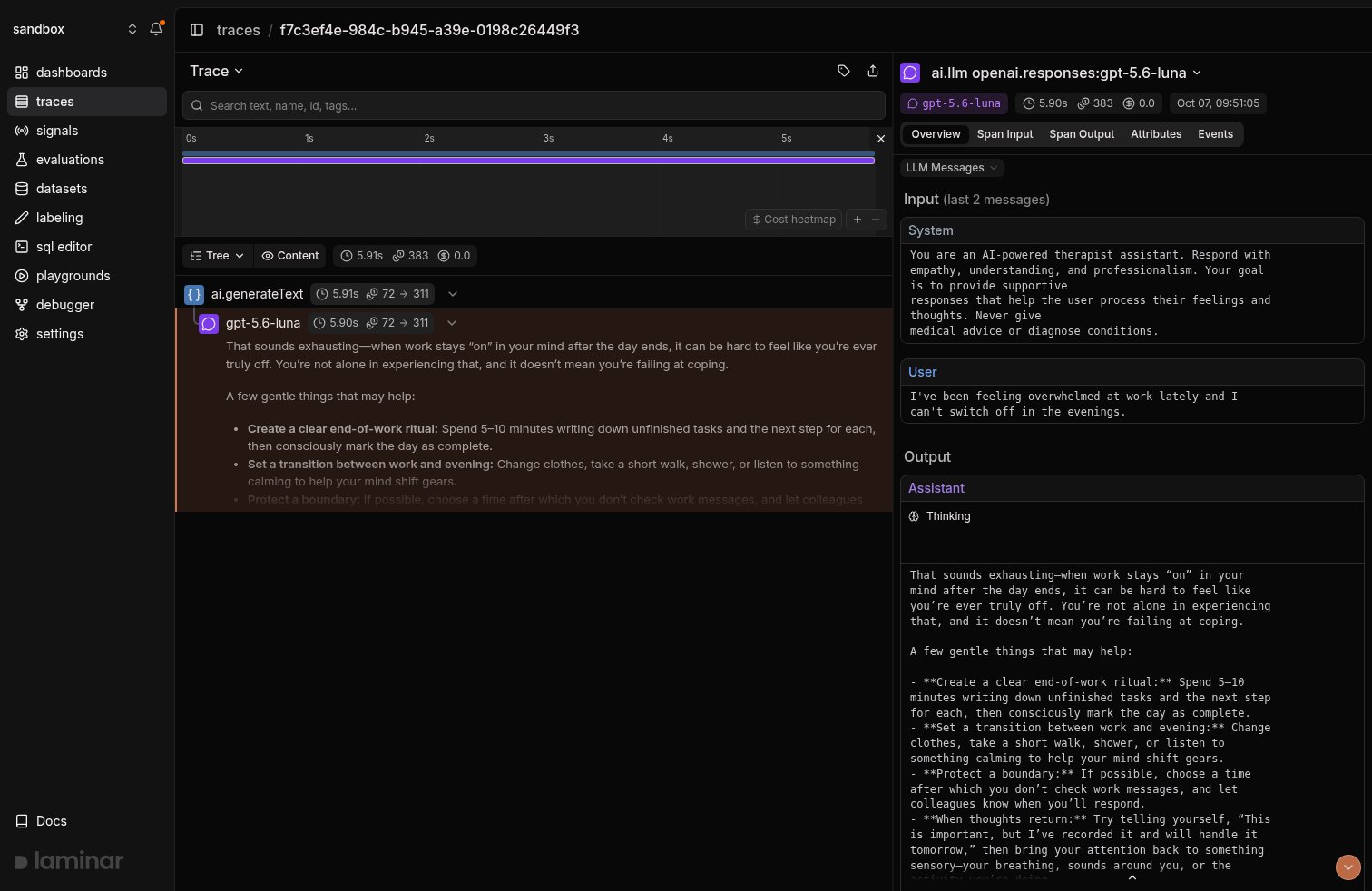
A screenshot of a trace from the example app.
Troubleshooting
If you encounter issues:- Check that your API keys are correctly set in the
.env.localfile - Verify that Laminar is properly initialized in the
instrumentation.tsfile - Verify that the
next.config.tsfile is correctly configured - Verify that
Laminar.patchis called after LLM SDKs are imported - If you use
instrumentModules, check that every provider package is also inserverExternalPackages - Ensure all dependencies are installed
- Review the Next.js logs for any application errors