
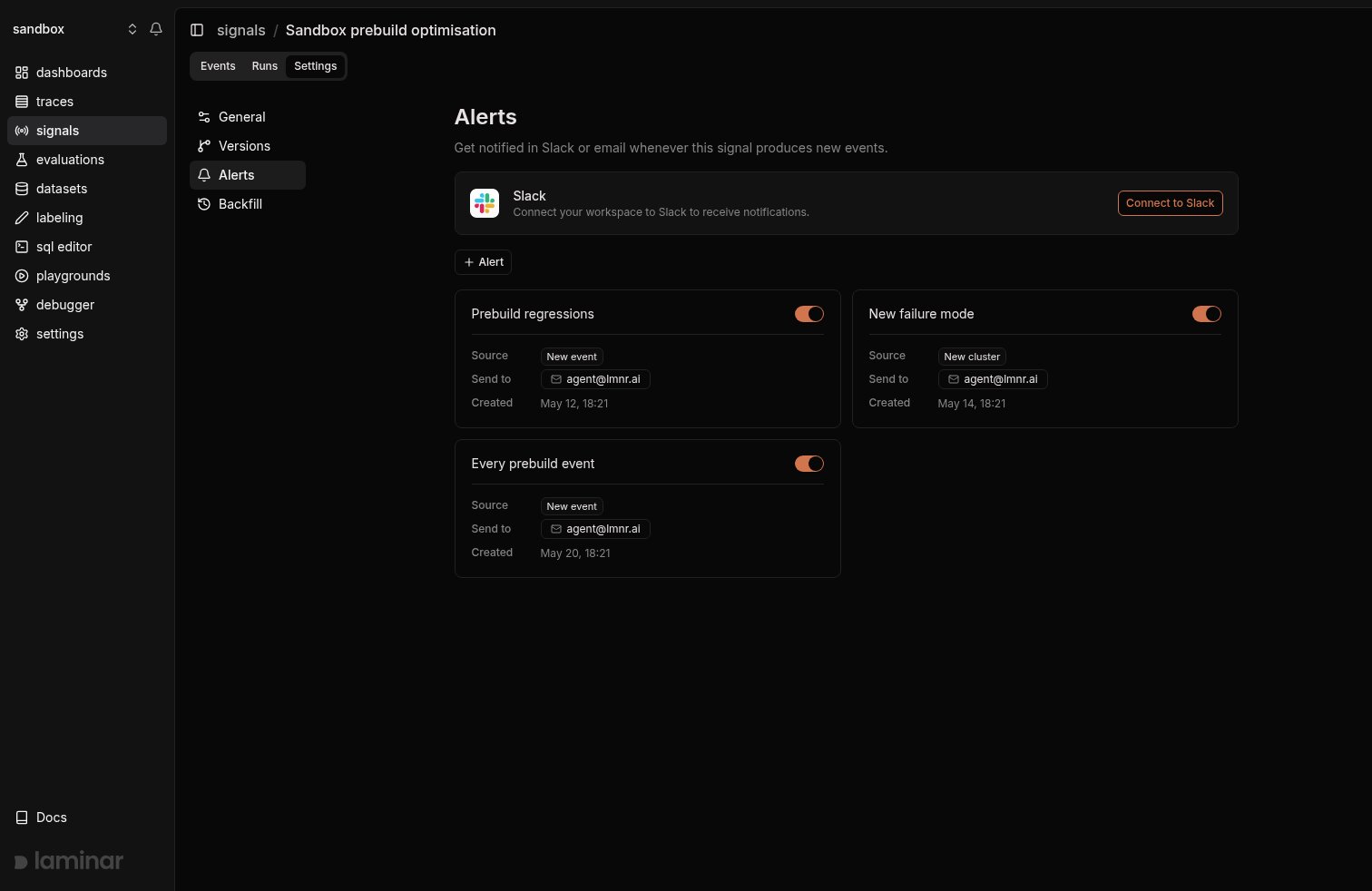
Signal settings: the Alerts section, with the Slack connection card and the Signal's alerts
Defaults on signal creation
Creating a new Signal in the UI auto-creates two alerts so you start receiving notifications immediately:- A New event alert on the new Signal, scoped to Critical severity, with skip similar events on by default.
- A New cluster alert.
Alert types
Each alert has one of two triggers:- New event: fires when a new event is extracted for the selected Signal. Filter by severity and, optionally, skip semantically similar events.
- New cluster: fires when a new cluster is created for the selected Signal. Useful for spotting failure modes that did not exist yesterday.
Severity levels
New event alerts fire only on events whose severity is included in the alert’s severity set. Pick any combination of:
- Info: low-severity events. Useful for low-volume signals where every event is interesting.
- Warning: mid-severity events.
- Critical: the highest severity. This is the default for alerts auto-created with a Signal.
Output schema filters
New event alerts can narrow further than severity. Output schema filters only notify when an event’s extracted output matches the conditions you set. The available fields come straight from the Signal’s structured output schema, so an alert can fire on, say, error_type = "timeout" while ignoring every other error.
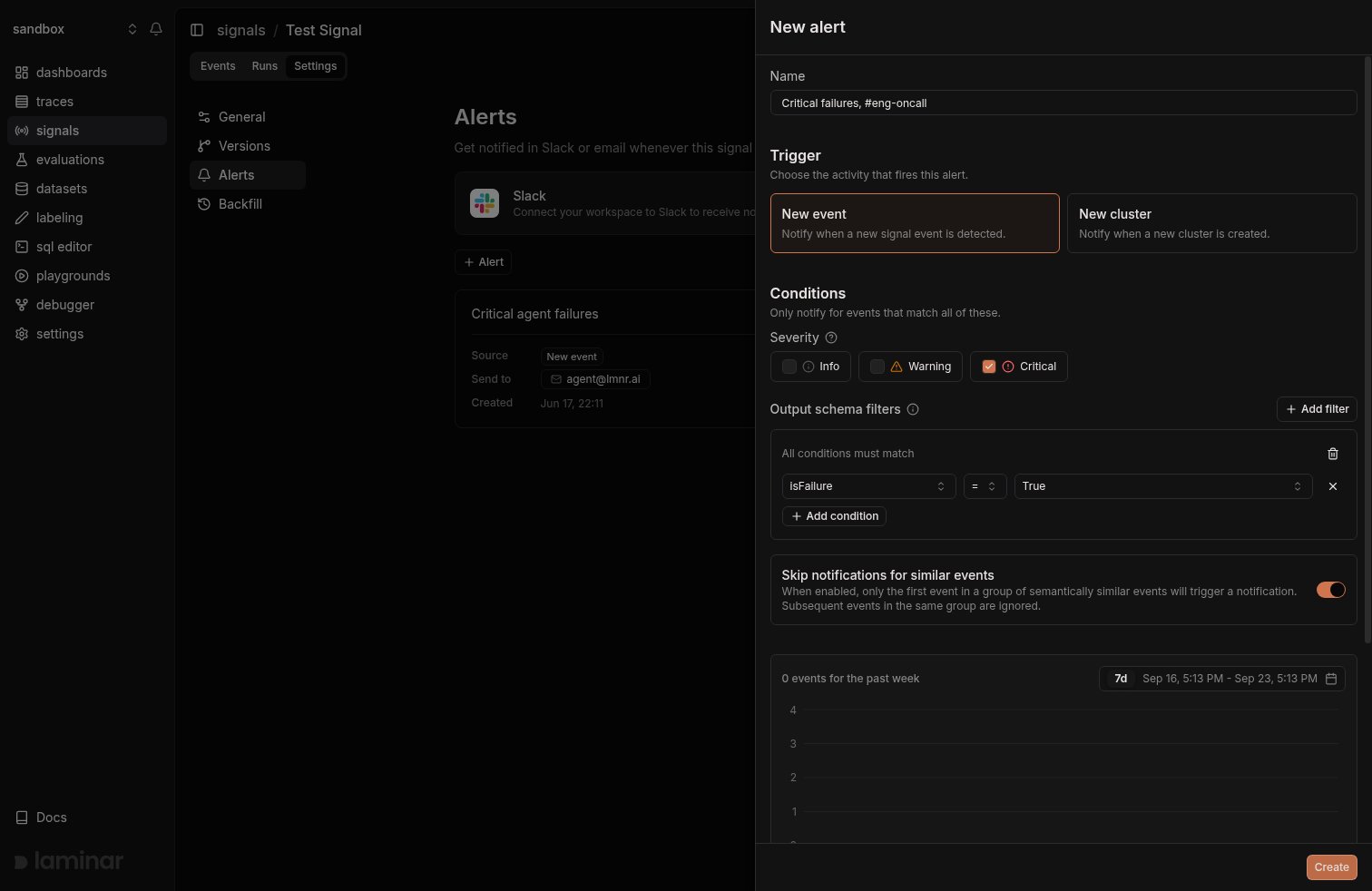
New-event alert with an output schema filter group: notify only when isFailure = True
- Click Add filter to start a condition group, then Add condition to add more conditions within it.
- Conditions inside one group are AND-combined: all of them must match (the group header reads All conditions must match).
- Add more groups to OR them together: an event triggers the alert if it matches any one group.
- Field types follow the schema: numbers compare with
=,>,<; booleans and enums offer their allowed values; strings match on substring.
Skip notifications for similar events
New event alerts have an optional Skip notifications for similar events toggle. When enabled, only the first event in a group of semantically similar events triggers a notification. Subsequent events in the same group are suppressed.
Turn this on when a Signal fires often on repetitive cases (the same timeout loop, the same tool error) and you only want to know about new failure modes. Turn it off when every event is worth paging.
New cluster alerts and similarity-based suppression require the clustering service. On a deployment without clustering, New cluster alerts remain silent and Skip notifications for similar events behaves like a regular New event alert.
Notification channels
Every alert posts to the in-app notification center by default. Alerts auto-created with a Signal also email the Signal’s creator. Slack and any additional email subscriptions are configured per alert.Slack
Slack messages contain the signal name, the extracted payload fields, and a link to the trace. Connect Slack once per workspace, from either place:- Signal settings: the Slack card at the top of any Signal’s Settings > Alerts section. Click Connect to Slack and you land back on the same page after authorizing.
- Workspace settings: Settings > Integrations under Workspace settings. See Slack integration.
Create an alert
- Open the Signal, click the Settings tab, select Alerts, and click + Alert.
- Fill in the form. The alert is bound to the Signal you opened it from:
- Name: a descriptive label (“Checkout failures, #eng-oncall”).
- Trigger: New event or New cluster.
- Severity (new-event alerts only): select among Info, Warning, Critical.
- Output schema filters (new-event alerts only): optional conditions on the event’s output.
- Skip notifications for similar events (new-event alerts only): on or off.
- Below the conditions, a preview chart shows how often the alert would have fired recently so you can gauge the expected volume.
- Email: toggle on to receive emails at your workspace email address.
- Slack channels (once Slack is connected): pick one or more channels to post into and click Test to send a sample message.
- Click Create. The alert is active immediately.
Edit or delete
In the Signal’s Settings > Alerts section, click an alert card to open its edit form, or hover the card and click the trash icon to delete it. Edits take effect on the next matching event; deletes are immediate.Enable or disable an alert
Every alert card in the Signal’s Settings > Alerts section has a switch that turns the alert on or off in place. Turn it off to pause notifications without losing the alert’s configuration: the trigger, severity set, filters, and channels are all kept, and the card moves to a dimmed state with the switch off. Turn it back on and notifications resume on the next matching event.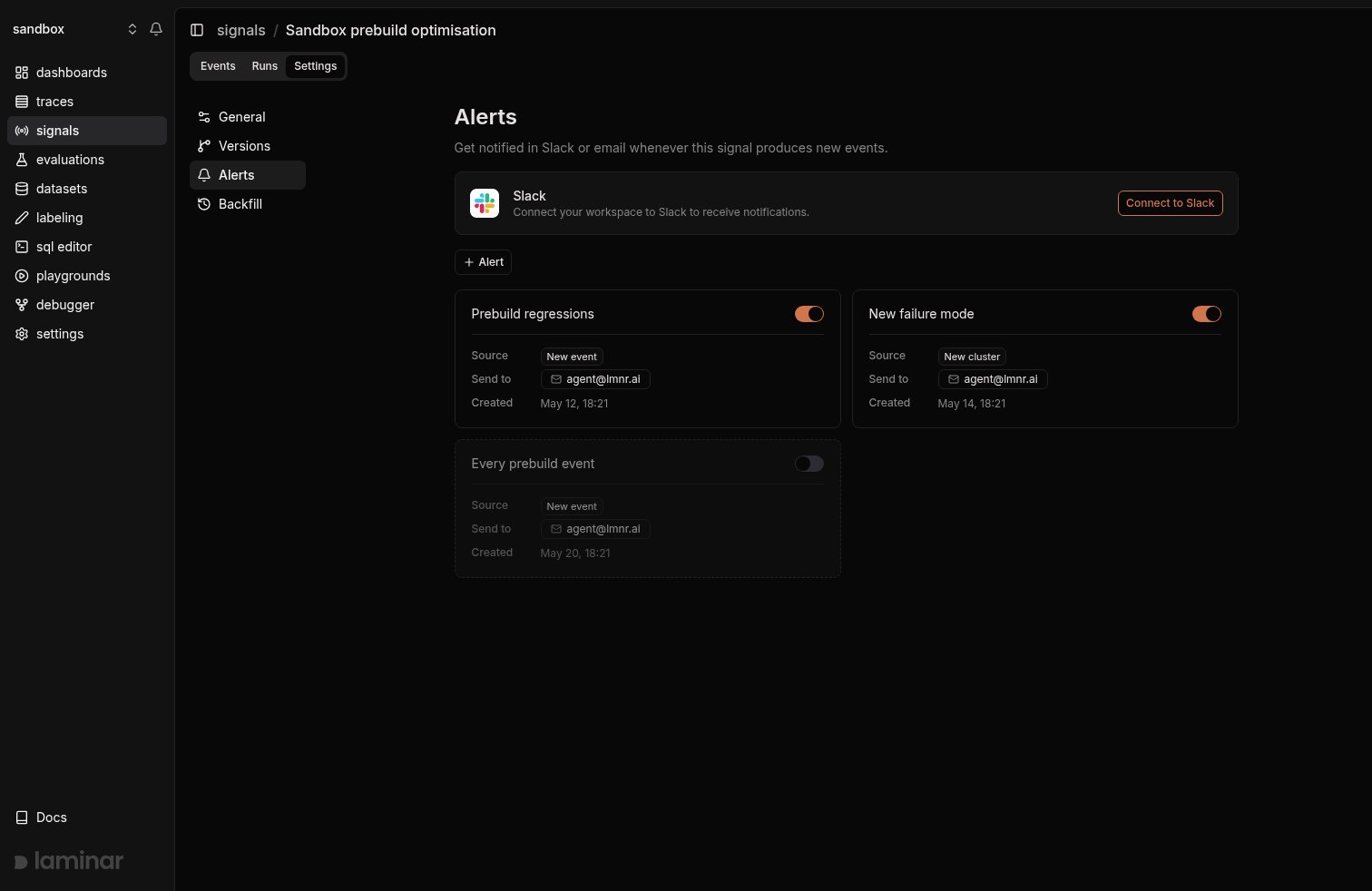
Each alert card has an on/off switch; disabled alerts render dimmed
Reports vs Alerts
Alerts fire on individual signal events or new clusters. Reports send periodic summaries of signal activity across a workspace. Use alerts to page on things you need to see now; use reports to keep a daily or weekly pulse.Next steps
Slack integration
Connect Slack so alerts can post to a channel.
Reports
Receive daily and weekly summaries of signal activity.