
tool_error,
api_error, logic_error, looping, wrong_tool, timeout, or other. You don’t need to
build this one yourself. Open it from the Signals list to see events as soon as your traces start
arriving.Prerequisites
- A Laminar project and
LMNR_PROJECT_API_KEY. - An agent or LLM app whose traces land in Laminar. The example below uses the Claude Agent SDK to produce traces quickly.
- On a self-hosted deployment, one LLM profile in the workspace. Each Signal picks a profile and one of its models to run on. On Laminar Cloud there is nothing to configure.
1. Generate traces
Any traced application will do. The Claude Agent SDK example below sends a handful of prompts and emits one trace per prompt. Enough to exercise a Signal end-to-end.quickstart_agent traces arrive.
2. Open Signals
Click Signals in the project sidebar. If this is a new project, the Failure Detector signal is already there, ready to run on any trace over 1000 tokens.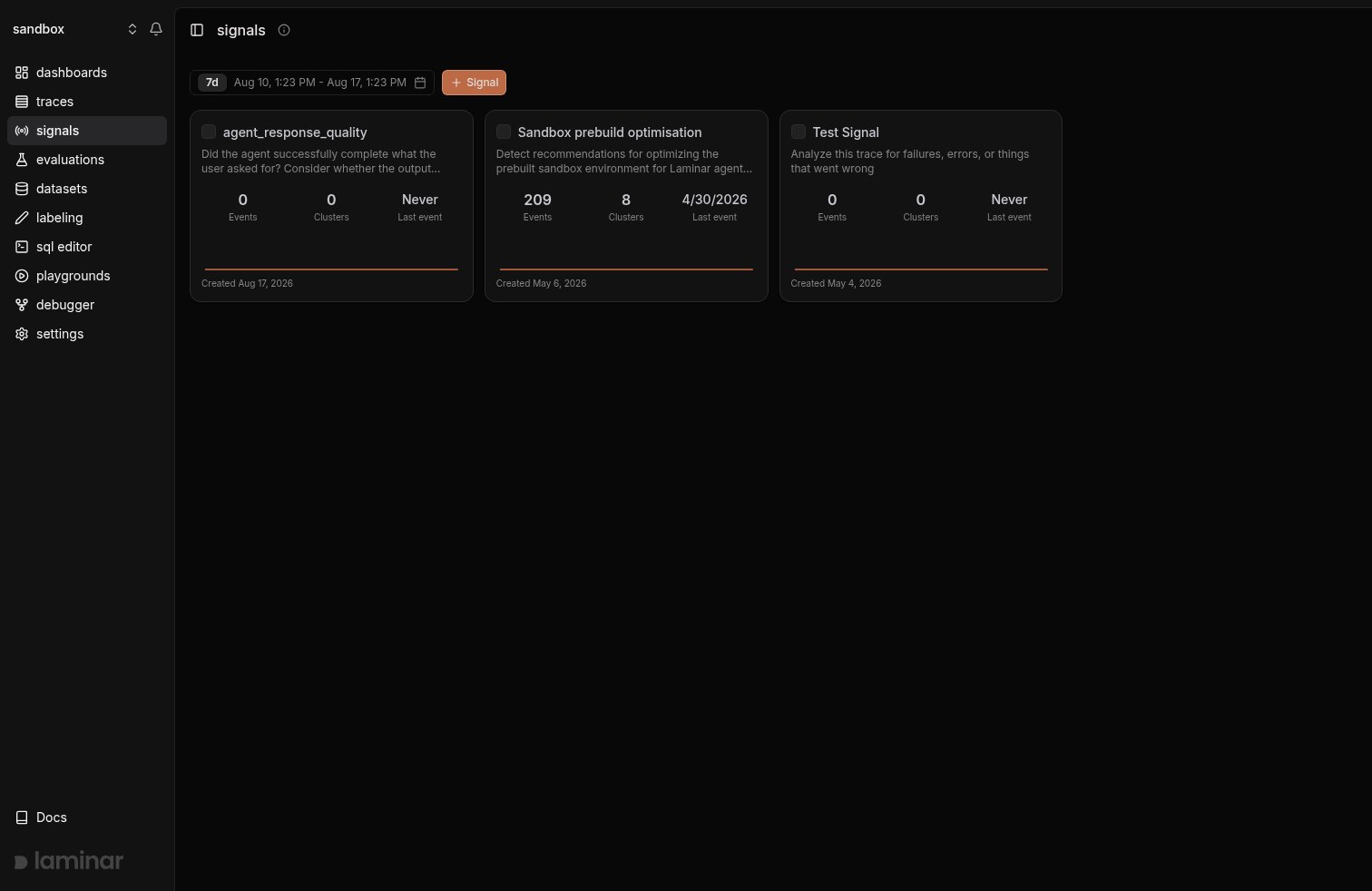
Signals list: one card per Signal with its event and cluster counts
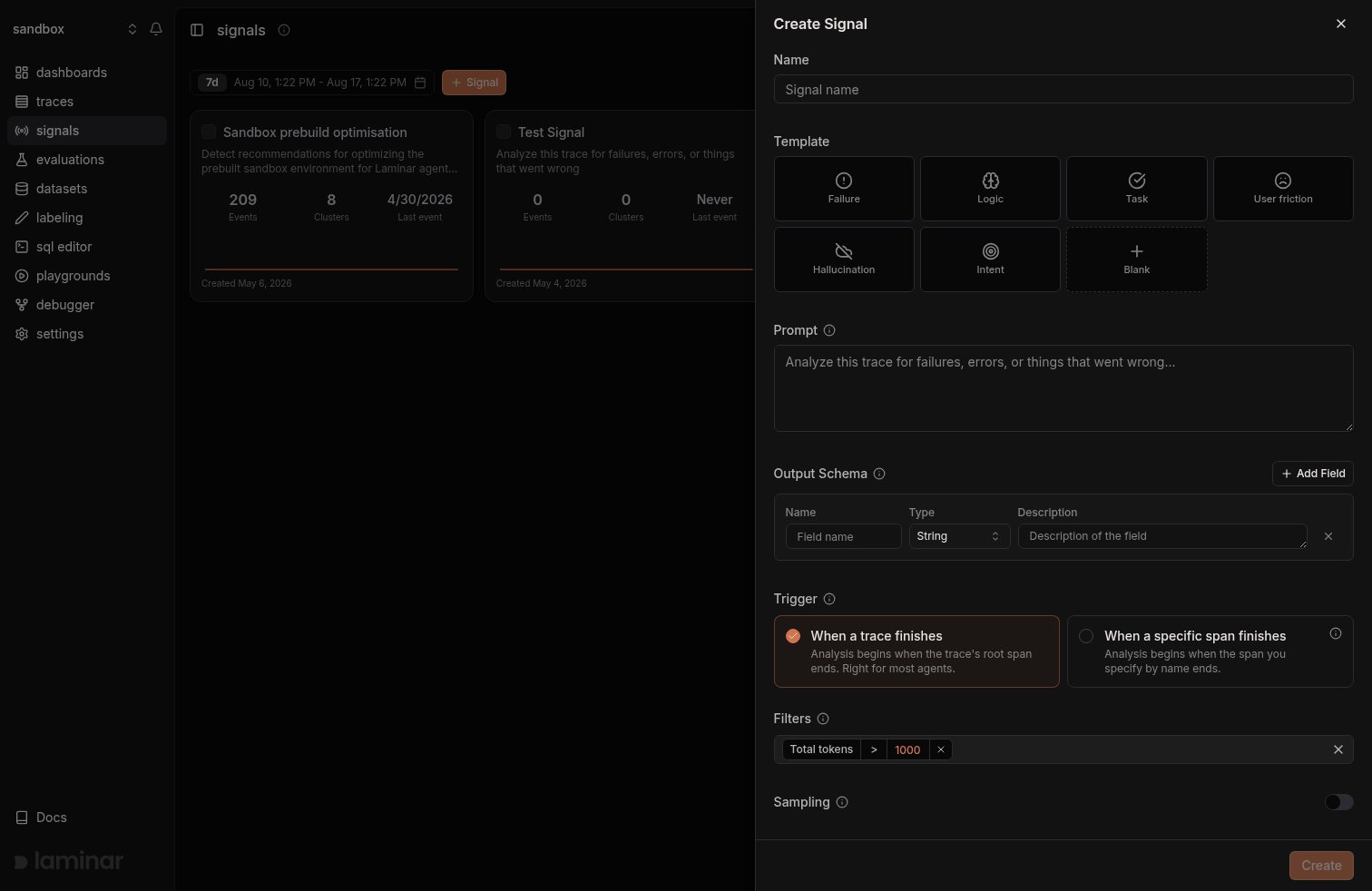
Create Signal drawer: name, template, prompt, and output schema on top, trigger and filters below
3. Write the Signal
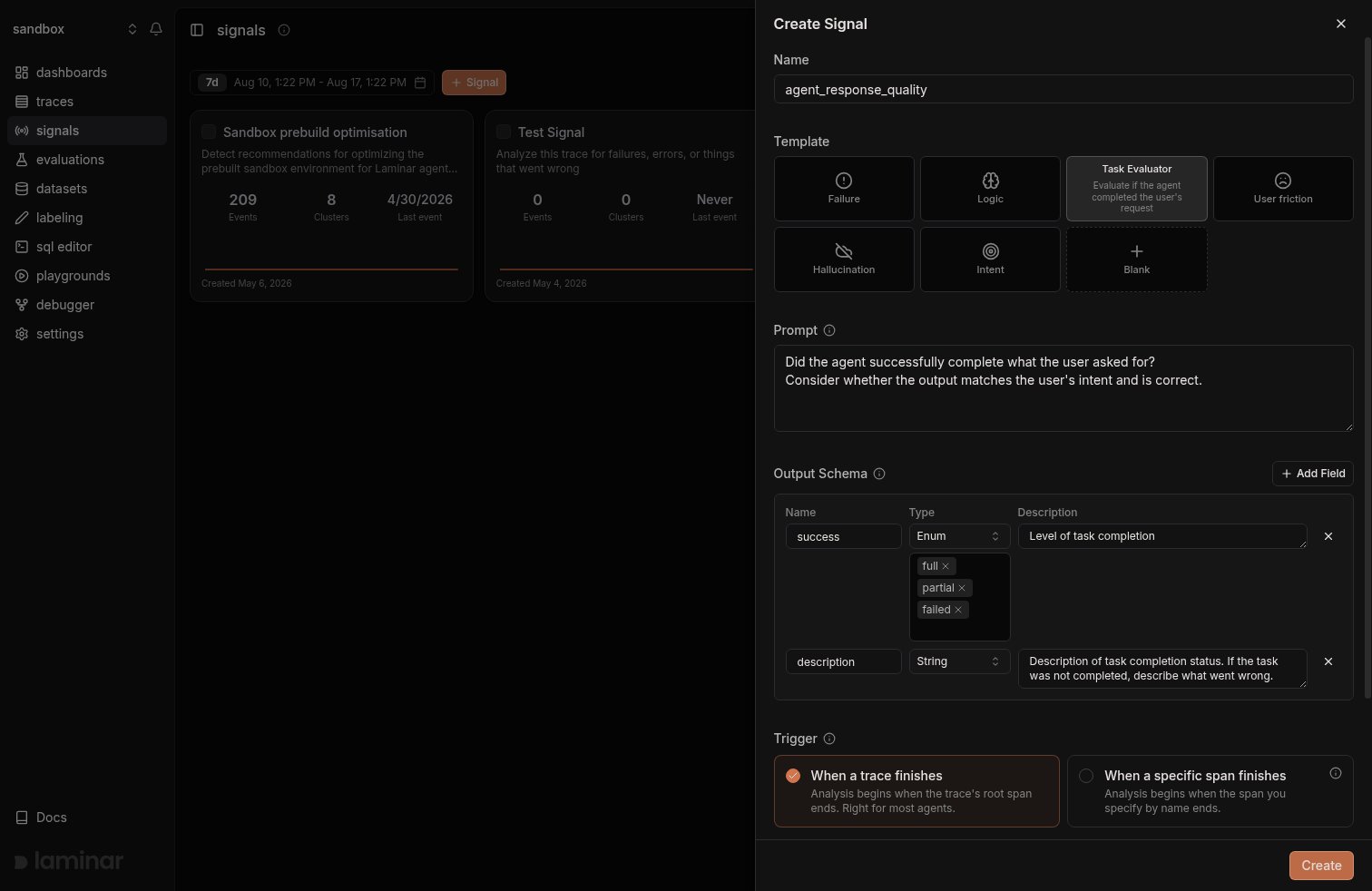
Create Signal drawer filled in from the Task template: the prompt and output schema come prefilled
Name
Template (optional)
Prompt
Structured output
Trigger
- When a trace finishes — fires once the trace’s root span ends. The default, and right for most agents.
- When a specific span finishes — fires when any span you name ends. Use this when the work is spread across services and spans keep arriving after the root span closes (distributed tracing).
Filters
total tokens > 1000.Sampling (optional)
4. Manage the Signal
A Signal can evaluate new traces as they arrive, or a historical slice. Open a Signal and click Settings to manage both from a sidebar with four sections: General (definition, trigger, and filters), Versions (the history of the Signal’s definition), Alerts, and Backfill. Every evaluation the Signal performs is listed on the Runs tab, next to Events and Settings.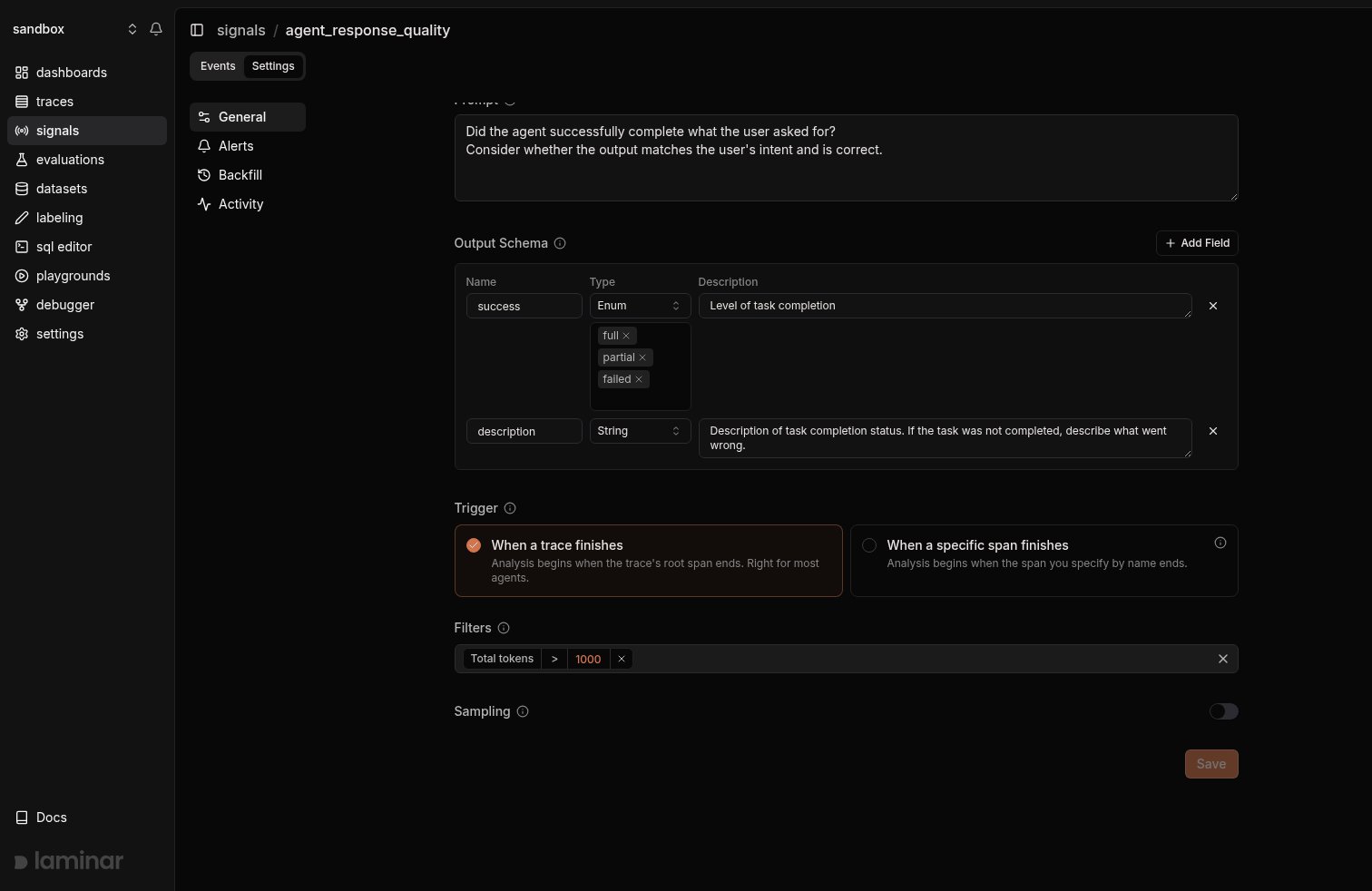
Signal Settings > General: prompt, output schema, trigger, filters, and sampling
Backfill (historical)
Use Backfill to run a Signal across historical traces, for example to evaluate a freshly-created Signal over the last 24 hours of traffic.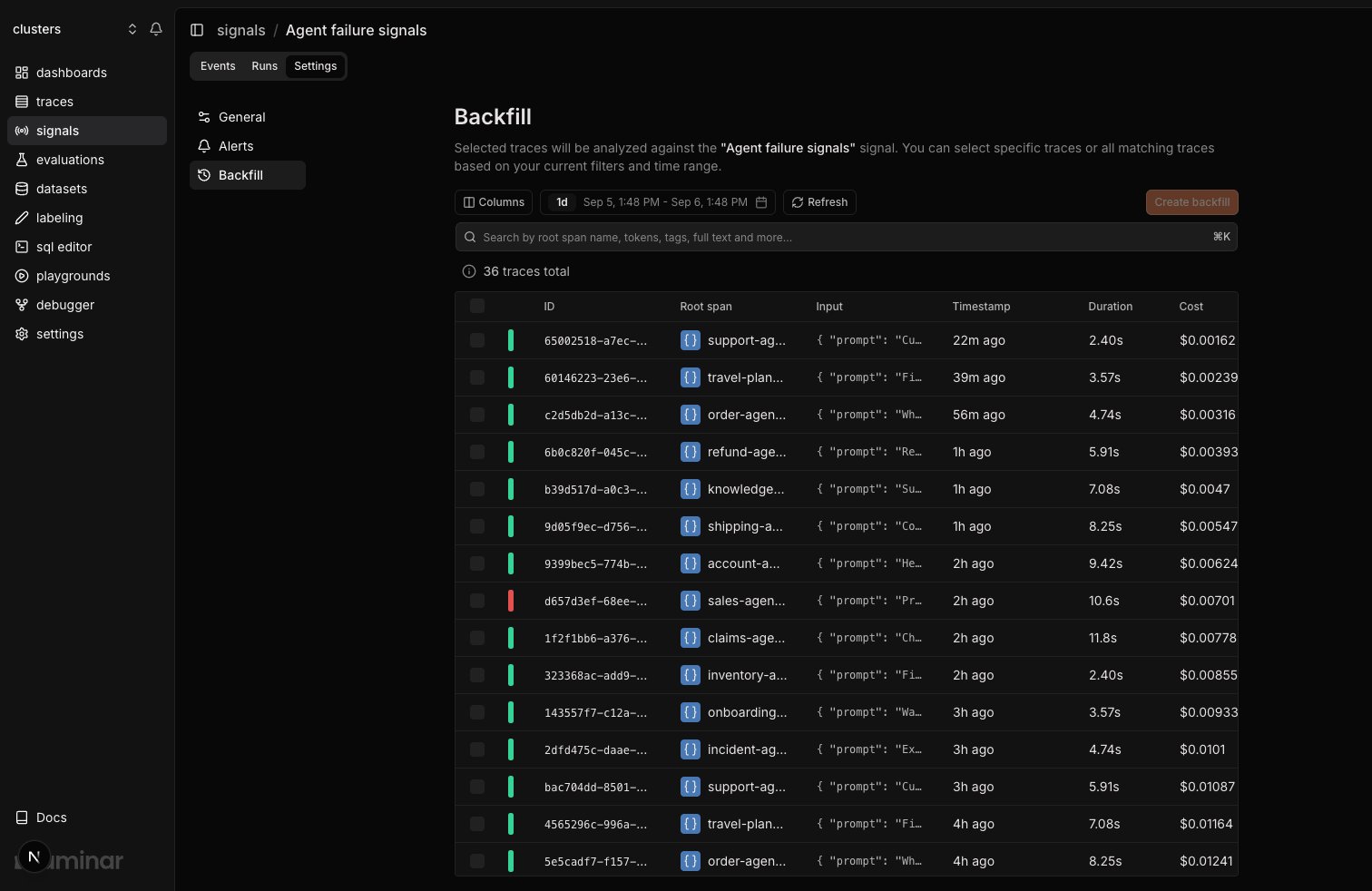
Start a backfill: pick traces or filters, then enqueue
- Open the Signal’s Settings > Backfill section.
- Pick a time range (defaults to the last 24 hours).
- Optionally narrow with filters or search.
- Choose specific traces or all traces matching your filters.
- Click Start backfill. Laminar enqueues one Run per trace.
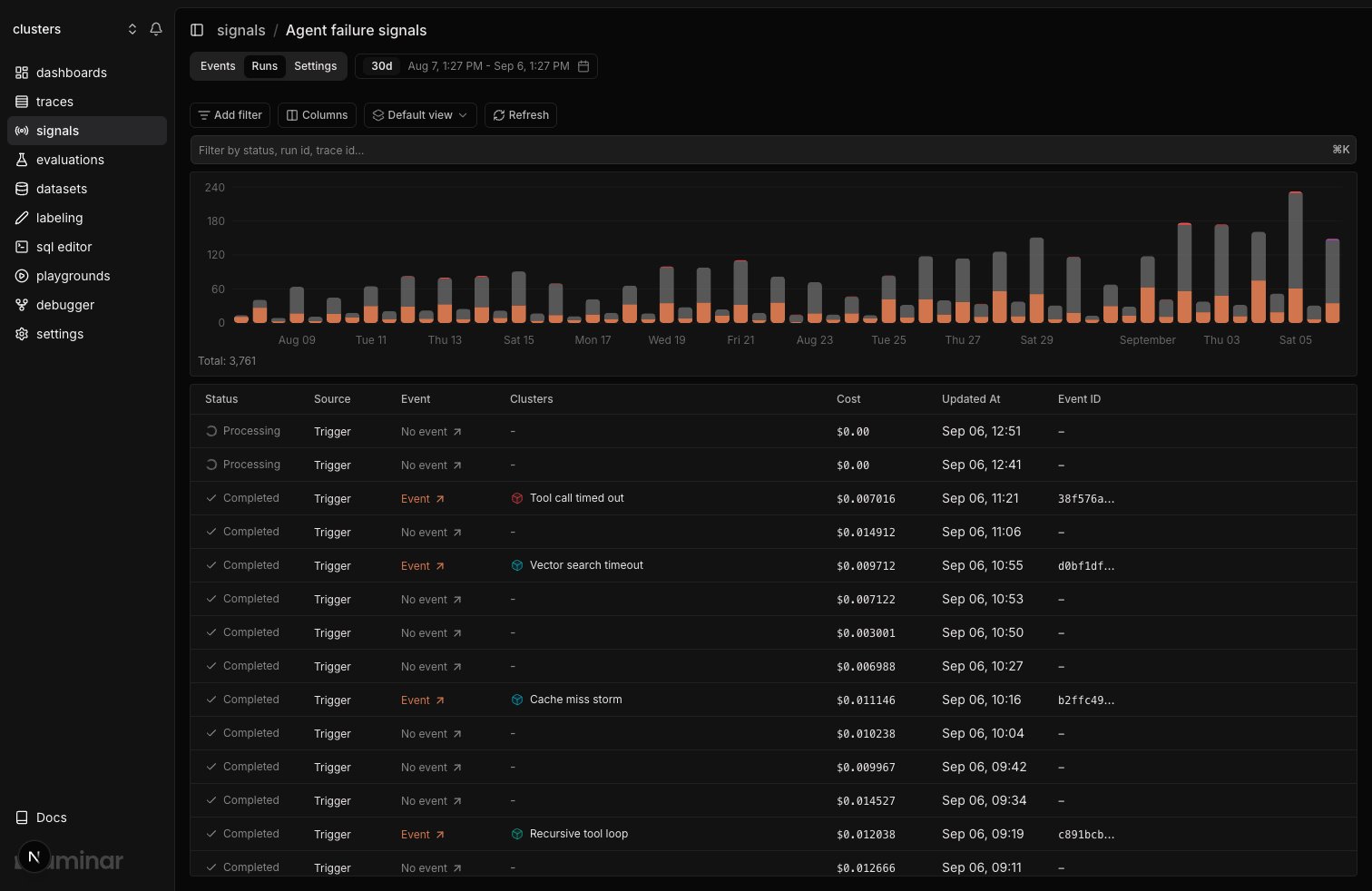
The Runs tab: one row per evaluated trace with its source, status, cost, and the event it produced
Pause and resume a Signal
A Signal you’re not ready to delete can be paused. Open the Signal’s Settings > General section and flip the Active switch off.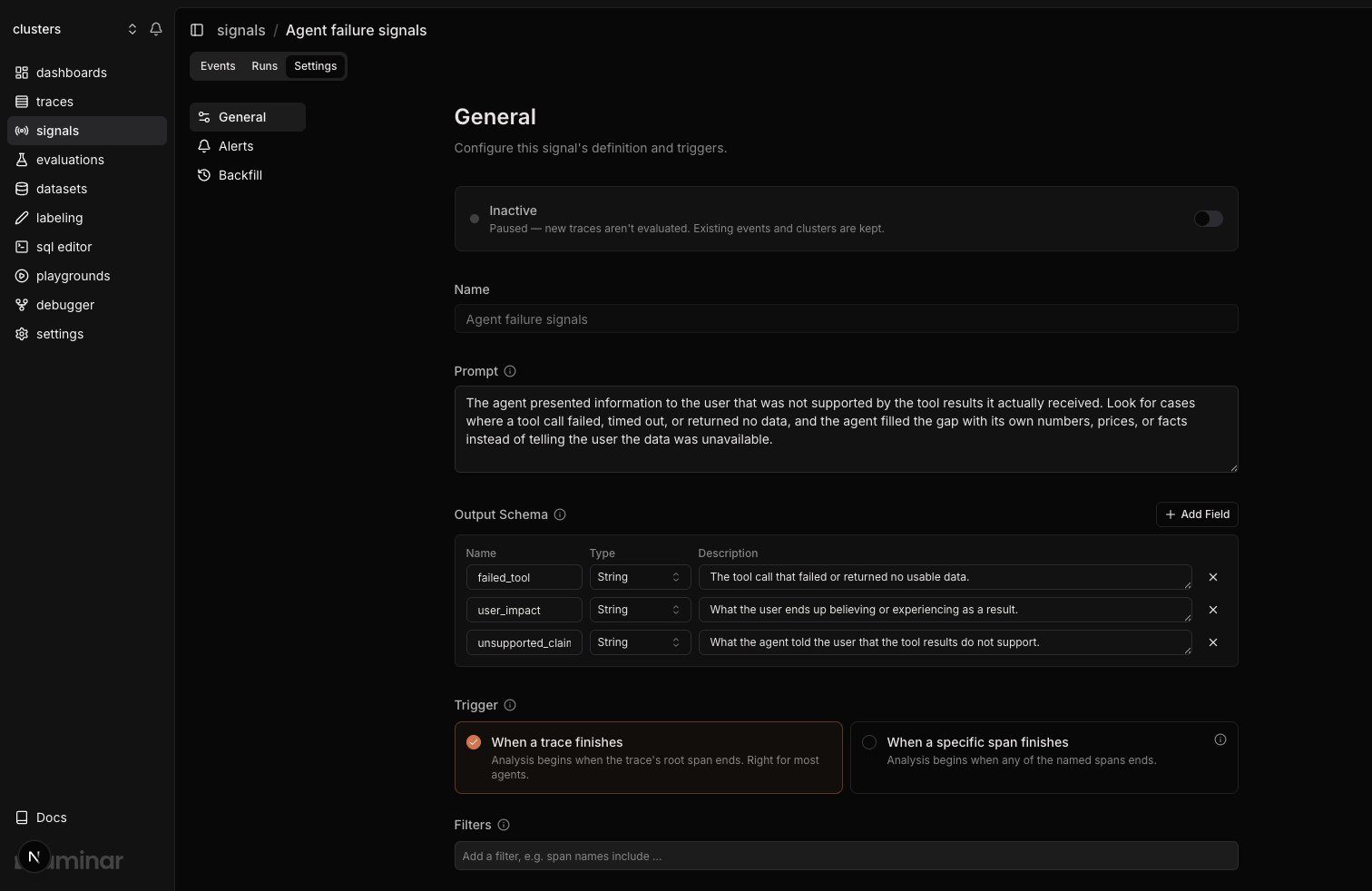
The Active switch at the top of Settings > General; flipped off, the Signal reads Inactive
- New traces are not evaluated, even if they match the Signal’s trigger and filters.
- Backfills are rejected until the Signal is re-enabled.
- Existing events and clusters are kept, and stay queryable in SQL and the UI.
- Alerts on the Signal stay configured but have nothing to fire on.
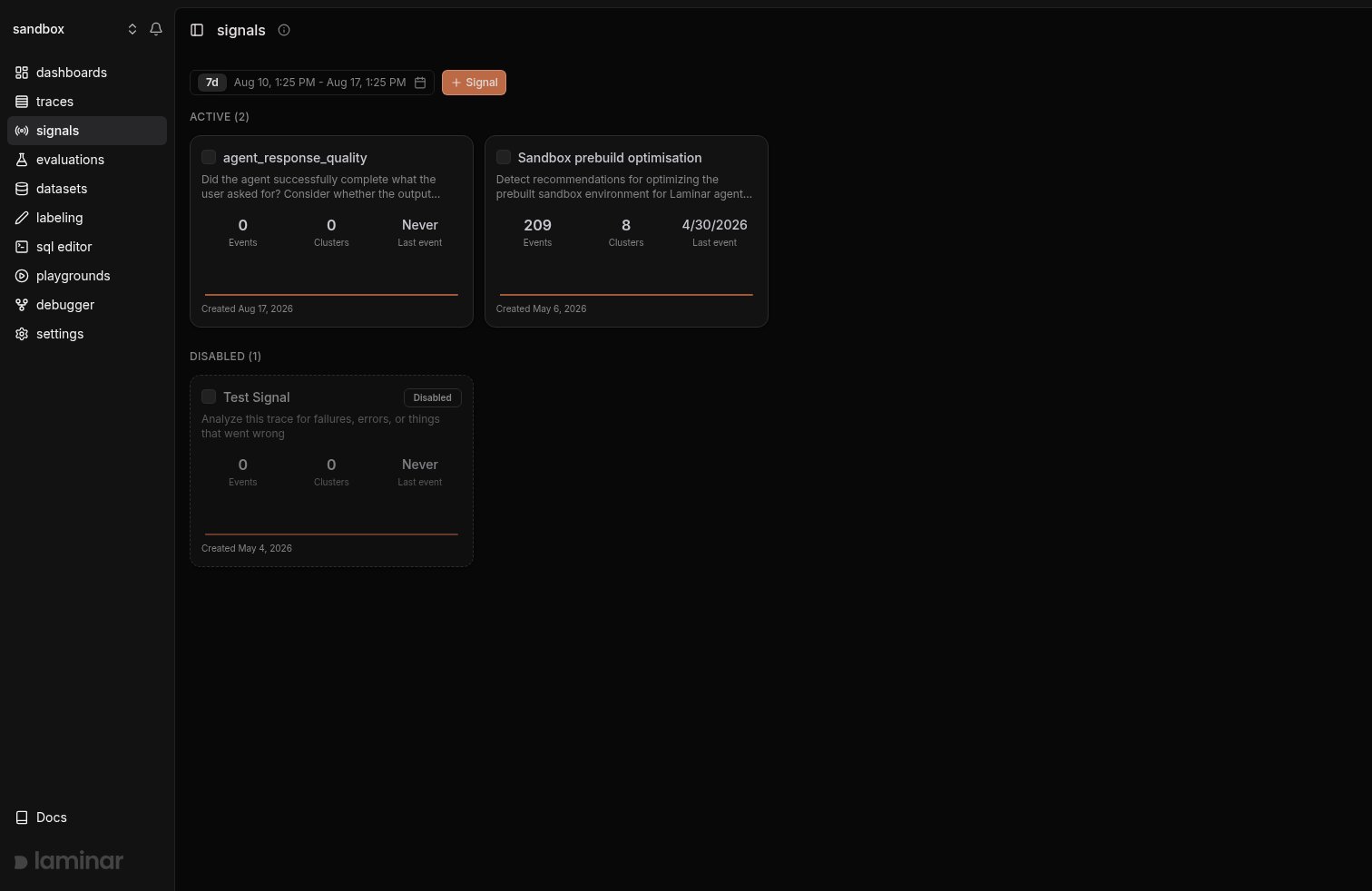
The Signals list groups paused Signals under a Disabled section
5. Inspect events
Open the Signal detail page and switch to the Events tab. Each row is one detected event, linked back to the trace that produced it.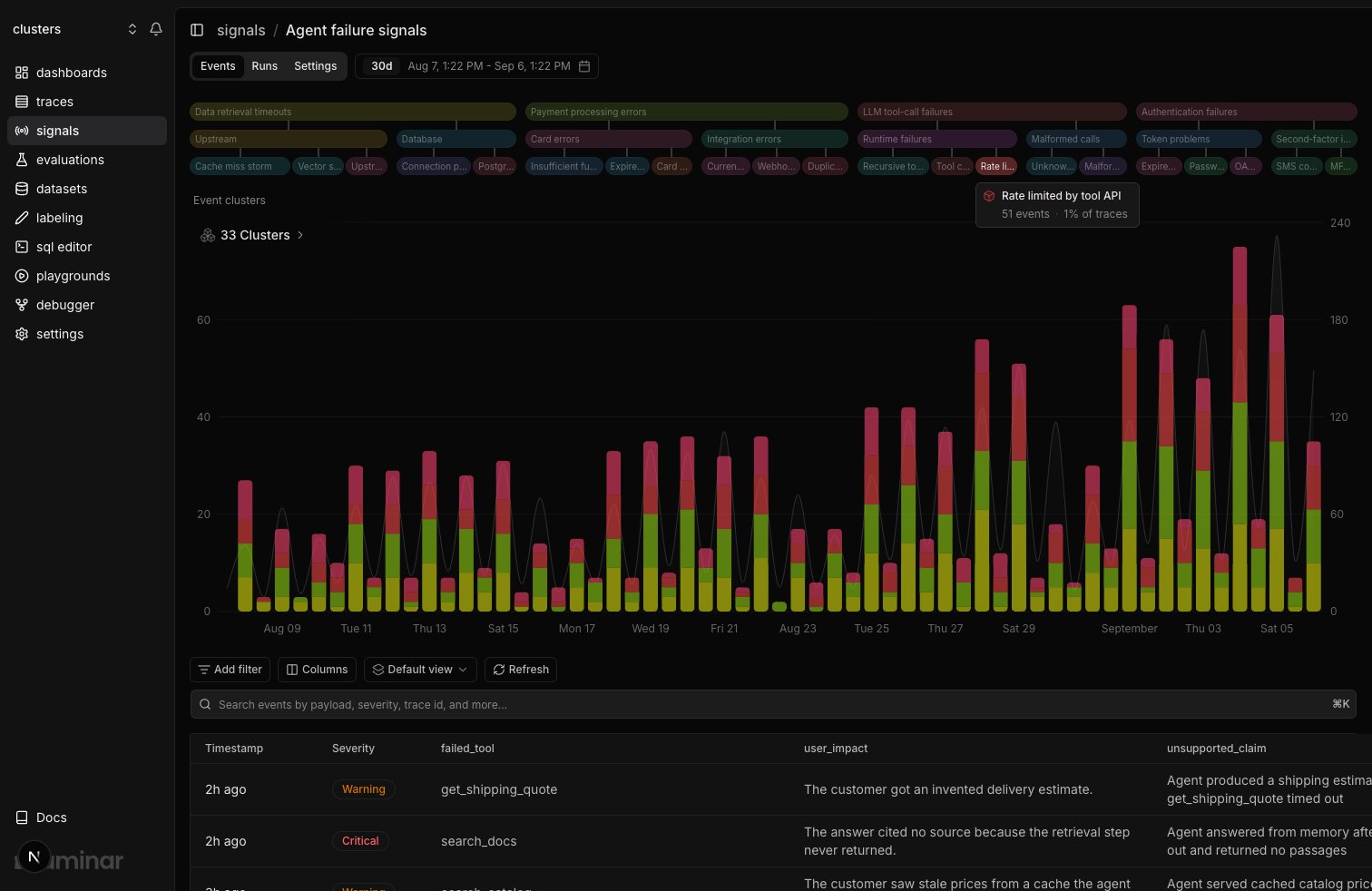
Events tab: structured payloads, timestamps, and jump-to-trace links
- Filter events by any field you defined in the structured output schema.
- Click any row to open the corresponding trace.
- Use the clusters view above the events table to see similar events grouped together. See Clusters.
- Query the raw events in the SQL Editor via the
signal_eventstable.
Querying signal events in SQL
signal_events stores each event’s payload as a JSON string. The UI’s payload filter uses simpleJSONExtractString / simpleJSONExtractRaw, so you can mirror the same behavior in SQL.
Events are also attached to the traces they came from, as signal_events and clusters columns on the traces table. Read them from there when the row you want back is a trace: see Signal events on traces.
Quick payload filter (UI-equivalent)
Numeric comparisons with JSONExtractFloat
Typed or nested fields with JSONExtract
Next steps
Clusters
Alerts
CLI
SQL Editor
signal_events table directly across every Signal.