
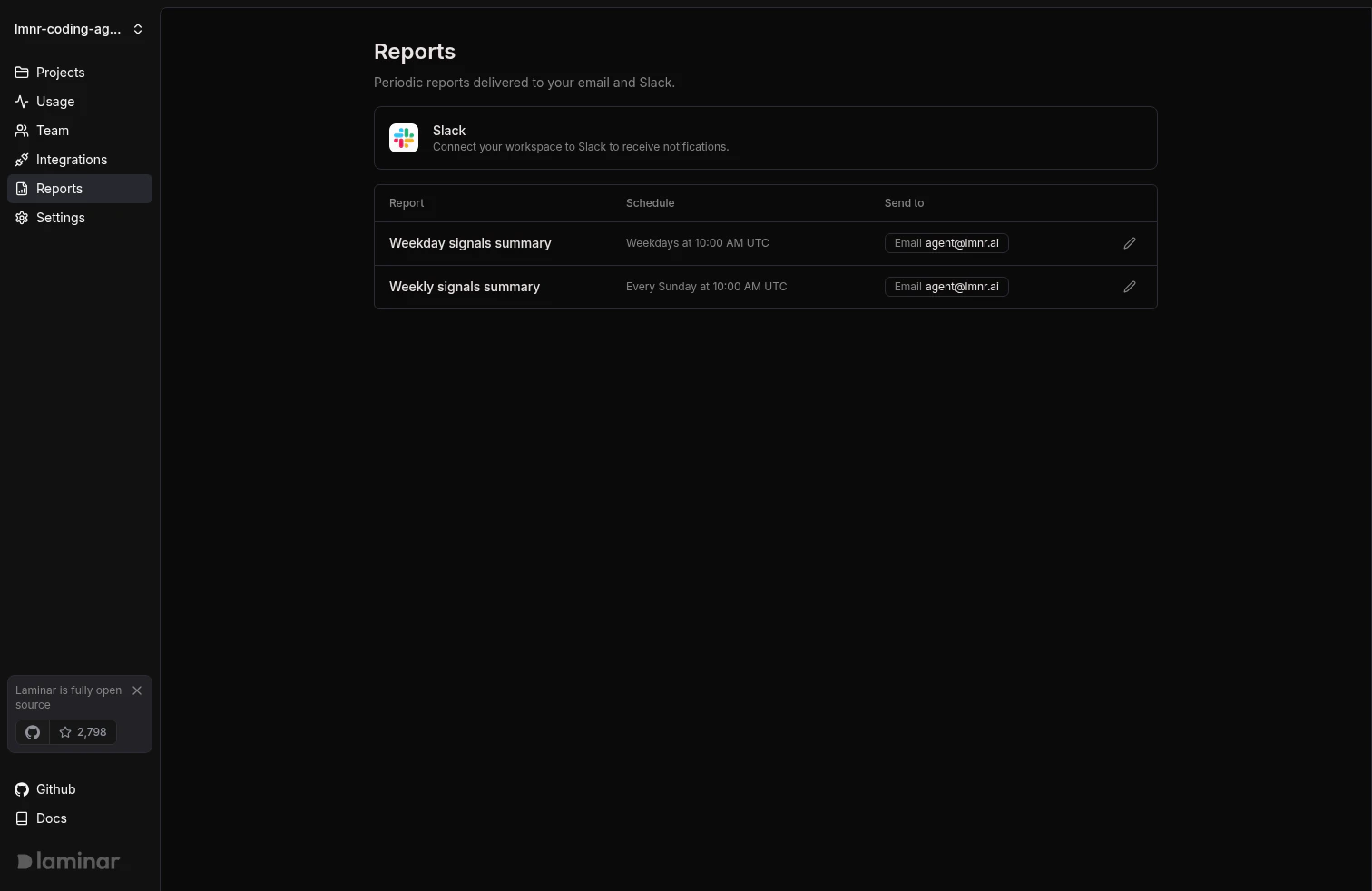
Workspace reports page
Defaults on workspace creation
Every new workspace ships with two reports, both on by default:- Weekday signals summary: delivered Monday through Friday at 10:00 AM UTC, summarizing signal activity from the previous day.
- Weekly signals summary: delivered Sunday at 10:00 AM UTC, summarizing the previous week.
What a report contains
Each report summarizes signal events across every project in the workspace for the report’s time window. The summary includes:- A per-signal event count for the period.
- An AI-generated narrative of recurring patterns and notable changes.
- A short list of noteworthy events with links into the source traces.
Notification channels
Every report posts to the in-app notification center by default. Slack and email are optional and configured per report.In-app notifications
The notification bell in the project sidebar shows a card for each recent report alongside signal alerts. Each report card expands to show the AI summary and noteworthy events. Trace links jump straight to the source trace.In-app display of reports is scoped to daily-style reports. Weekly reports are delivered to Slack and email only to avoid duplicating information already shown by the daily report.
Slack
Reports can post to a single Slack channel per report. Slack messages include the same per-signal counts, AI summary, and noteworthy events as the email. Connect Slack from Workspace > Integrations (see Slack integration) or from the Reports page.Manage a report
- Open Workspace > Reports.
- Click the pencil icon on the row for the report you want to change.
- In the side sheet:
- Slack channel: pick a channel or clear the selection to stop posting to Slack.
- Email: toggle to subscribe or unsubscribe your own email address.
- Click Save.
Reports vs. alerts
Reports send periodic rollups across an entire workspace. Alerts fire on individual signal events or new clusters within a single project. Use reports for a regular pulse; use alerts to page on things you need to see now.Next steps
Alerts
Page on individual signal events and new clusters.
Slack integration
Connect Slack so reports can post to a channel.