
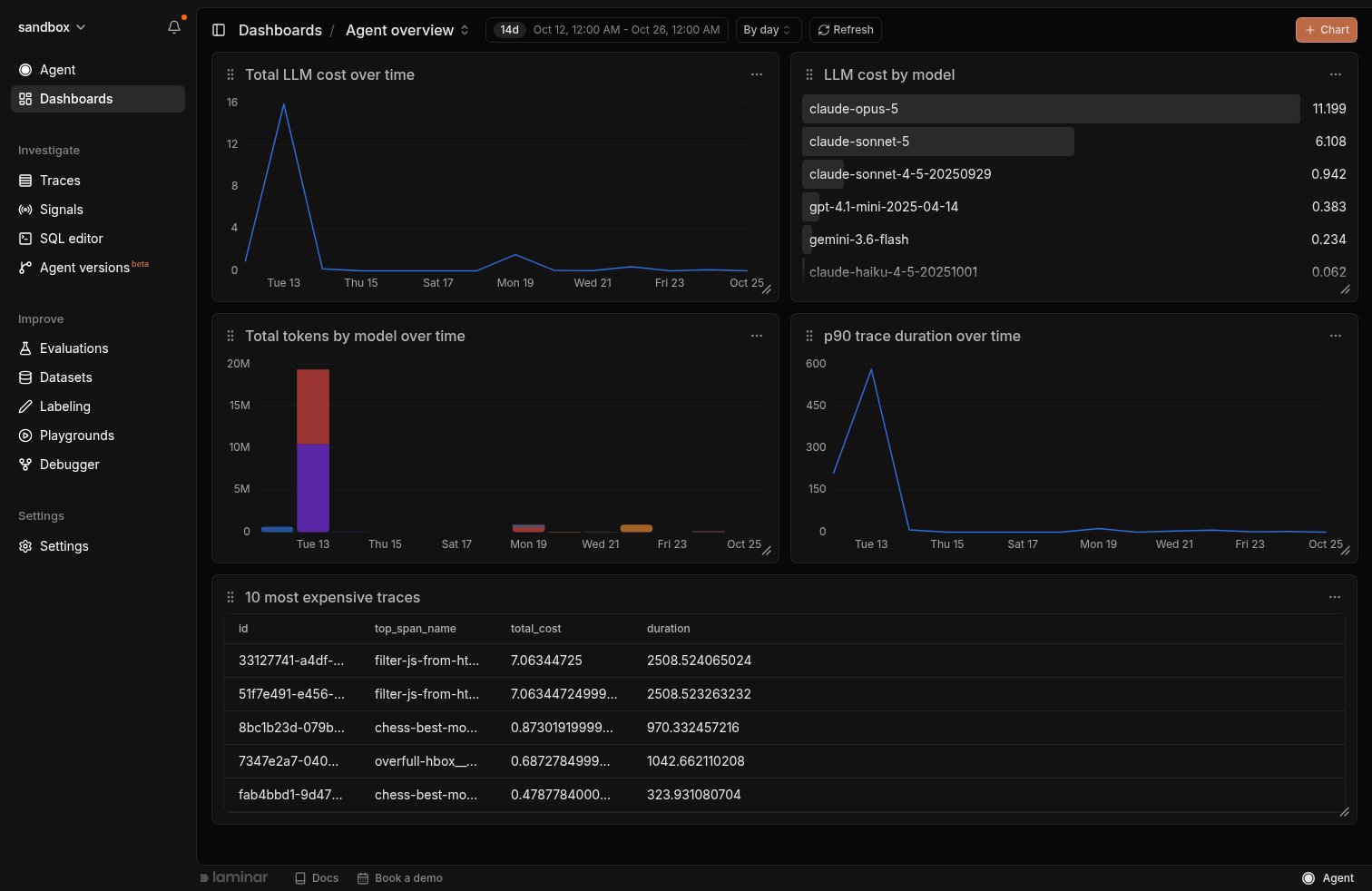
A dashboard with line, bar, horizontal bar, and table charts over the last 14 days.
- Time range: a preset such as the last 24 hours or 14 days, or a custom window.
- Group by: the bucket size of time-series charts, By minute, By hour, or By day. The options depend on the length of the time range.
- Refresh: re-runs every chart.
+ Chart: adds a chart (see Add a chart).
Switch between dashboards
A project can have as many dashboards as you need: one for cost, one for a specific agent, one for an incident. Click the dashboard name in the header to open the dashboard strip, which shows a thumbnail of every dashboard’s layout.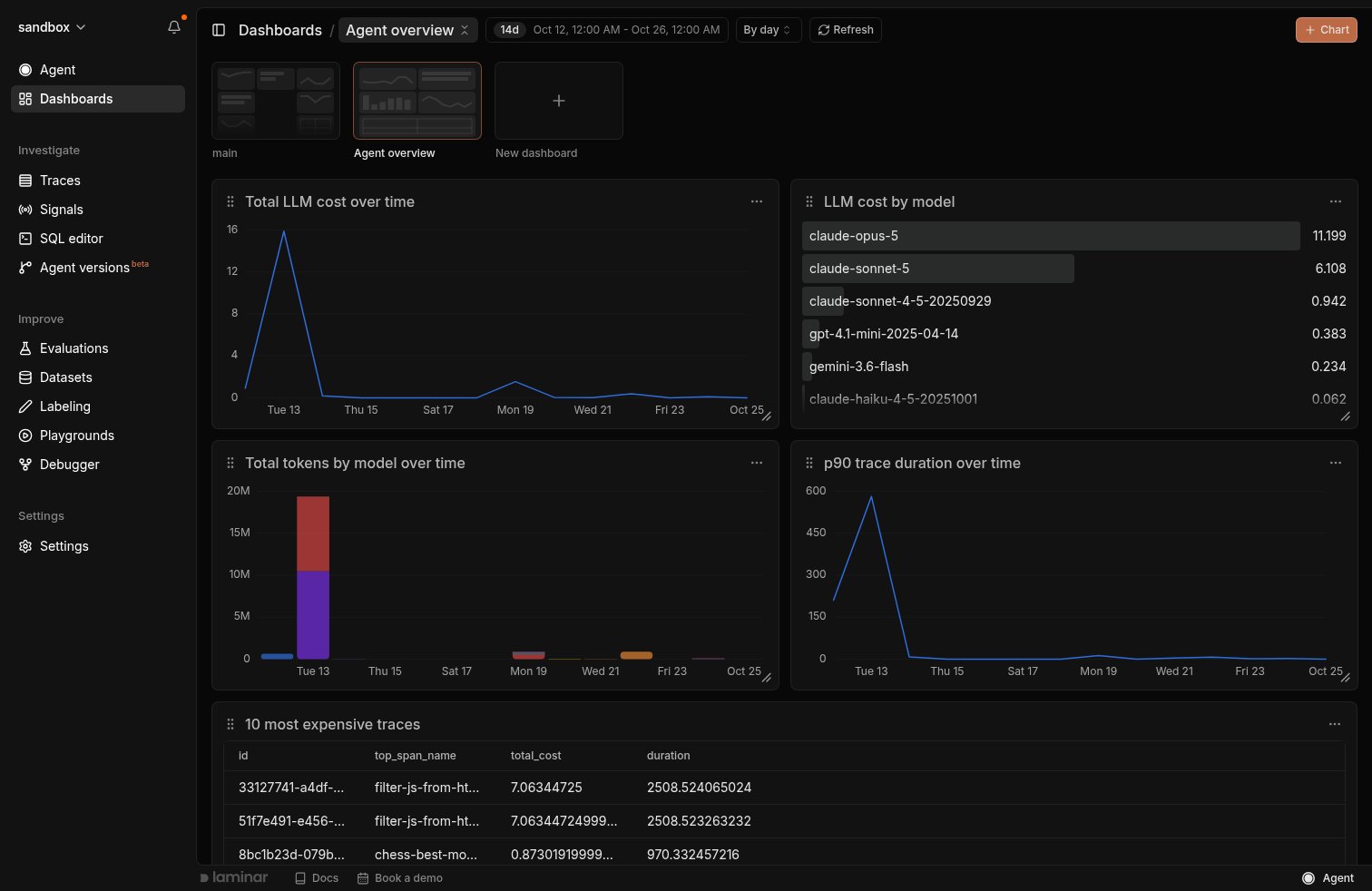
Click the dashboard name to see every dashboard in the project, with the current one highlighted.
- Open a dashboard by clicking its card. Laminar reopens the last dashboard you viewed the next time you visit Dashboards.
- Create a dashboard with the New dashboard card at the end of the strip.
- Rename or delete a dashboard from the buttons that appear when you hover its card. Deleting a dashboard also deletes its charts. The last dashboard in a project can’t be deleted.
Organize charts
Each chart’s More options menu has Rename, Edit, Duplicate, Move to, and Delete.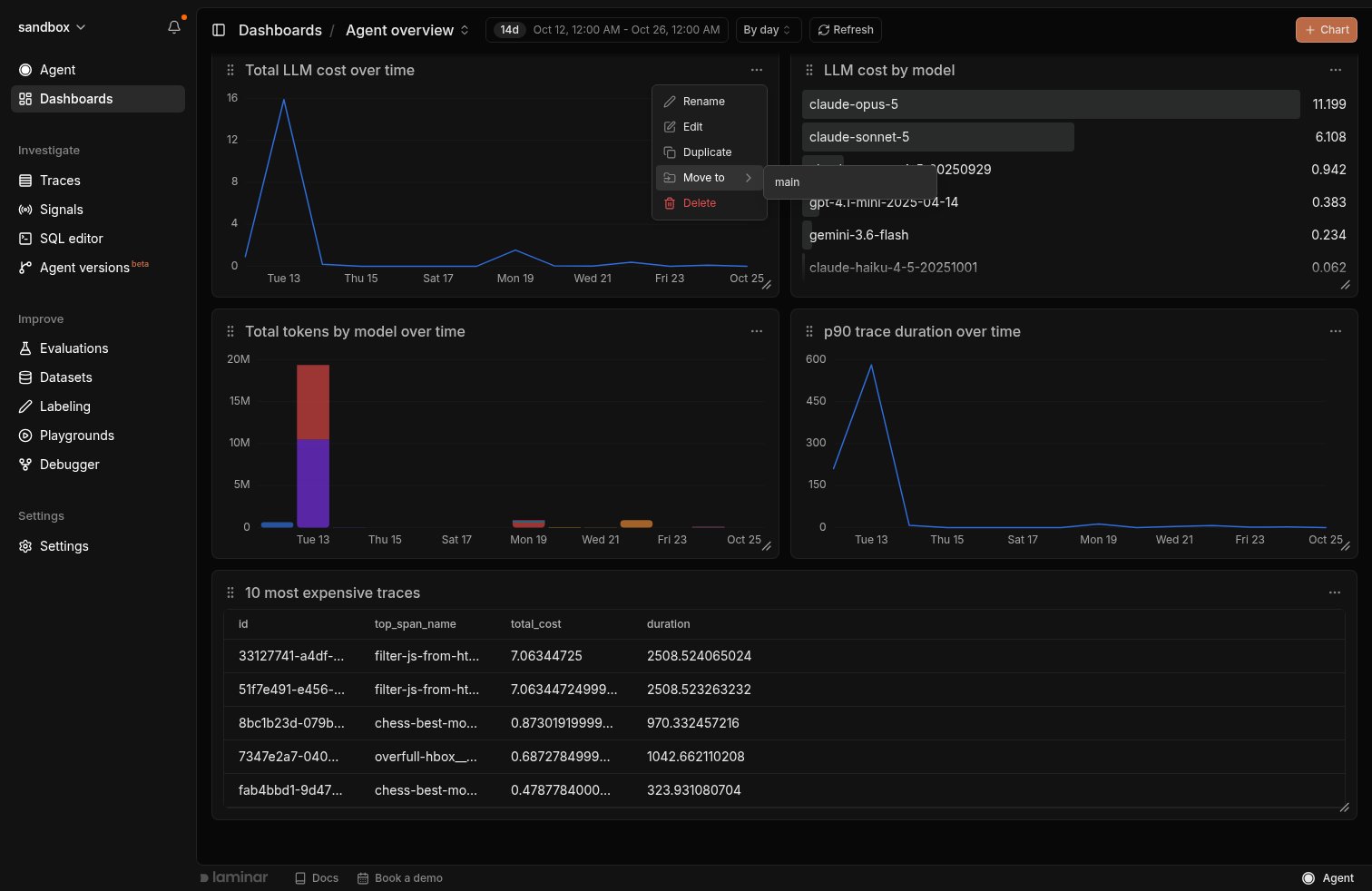
Move a chart to another dashboard from its More options menu.
Add a chart
The+ Chart button opens a preset picker grouped by data source: Traces, Spans, and Signals, plus Custom for a blank chart. Pick a preset and the chart is added to the bottom of the dashboard right away. To change its filters, grouping, or name, choose Edit from the chart’s More options menu. Custom opens the chart editor with an empty chart.
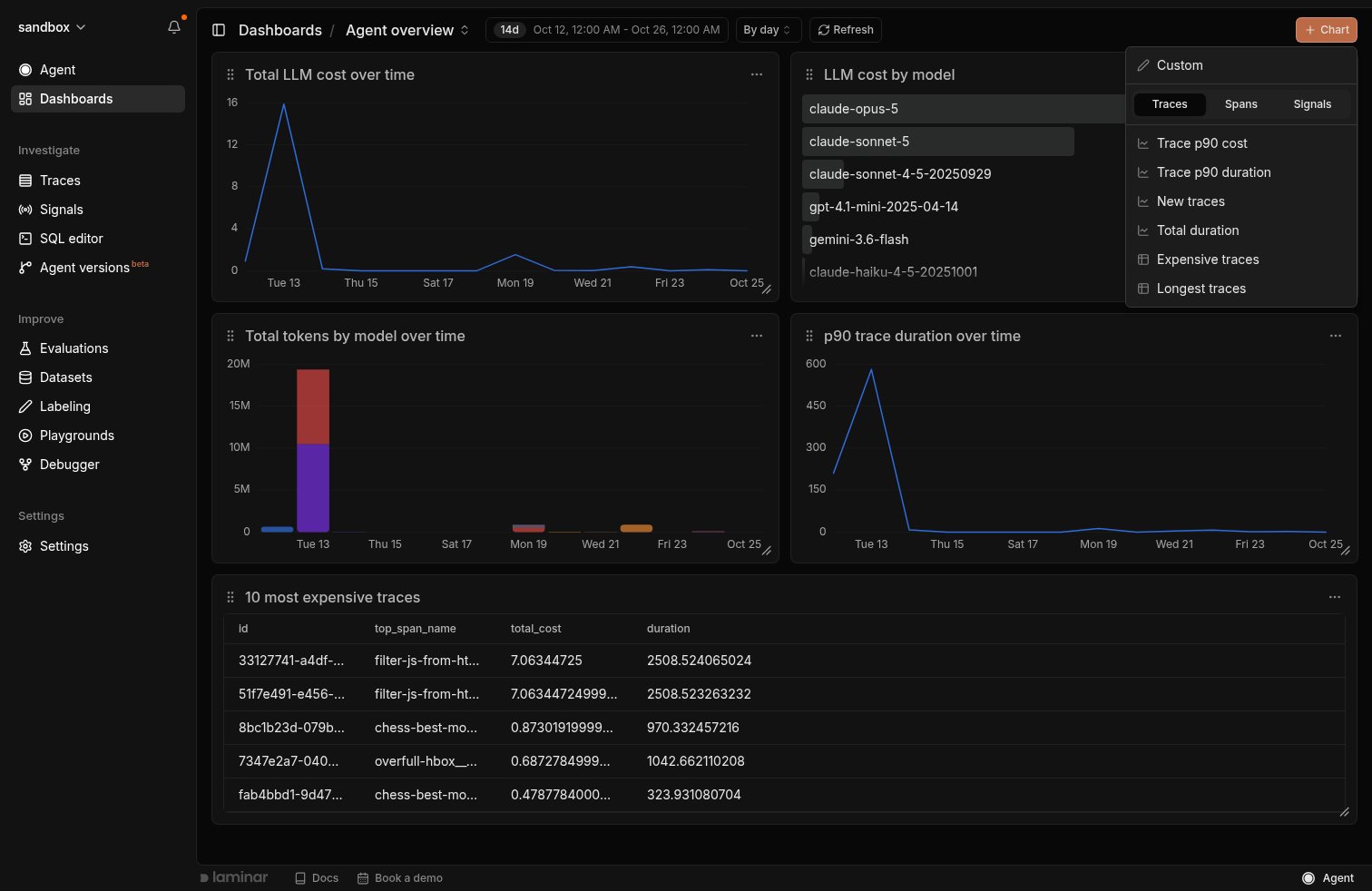
Presets for traces, spans, and signal events, or Custom for a blank chart.
- Traces: Trace p90 cost, Trace p90 duration, New traces, Total duration, Expensive traces, Longest traces.
- Spans: Total cost, Total tokens, Tokens by model, Top span names, Expensive spans, Longest spans.
- Signals: Signal events, Signal events table.
Chart types
- Line Chart: a time series, bucketed by the dashboard’s Group by interval.
- Bar Chart: a time series as bars. With a group-by or breakdown column, bars stack per bucket.
- Horizontal Bar: a ranked comparison, such as cost by model or the most common span names.
- Table: rows from your query, with sortable columns and infinite scroll. Column order, width, and visibility are saved on the chart.
$ prefix and durations with a seconds suffix.
Build a chart
The chart editor has a sidebar with the chart’s settings and a live preview on the right. The preview has its own Time range and Group by, so you can check the chart against a different window without changing the dashboard. Pick a Chart name and Chart type, then build the query in one of two modes: Standard or Advanced.Standard mode
Standard mode builds the query from form fields.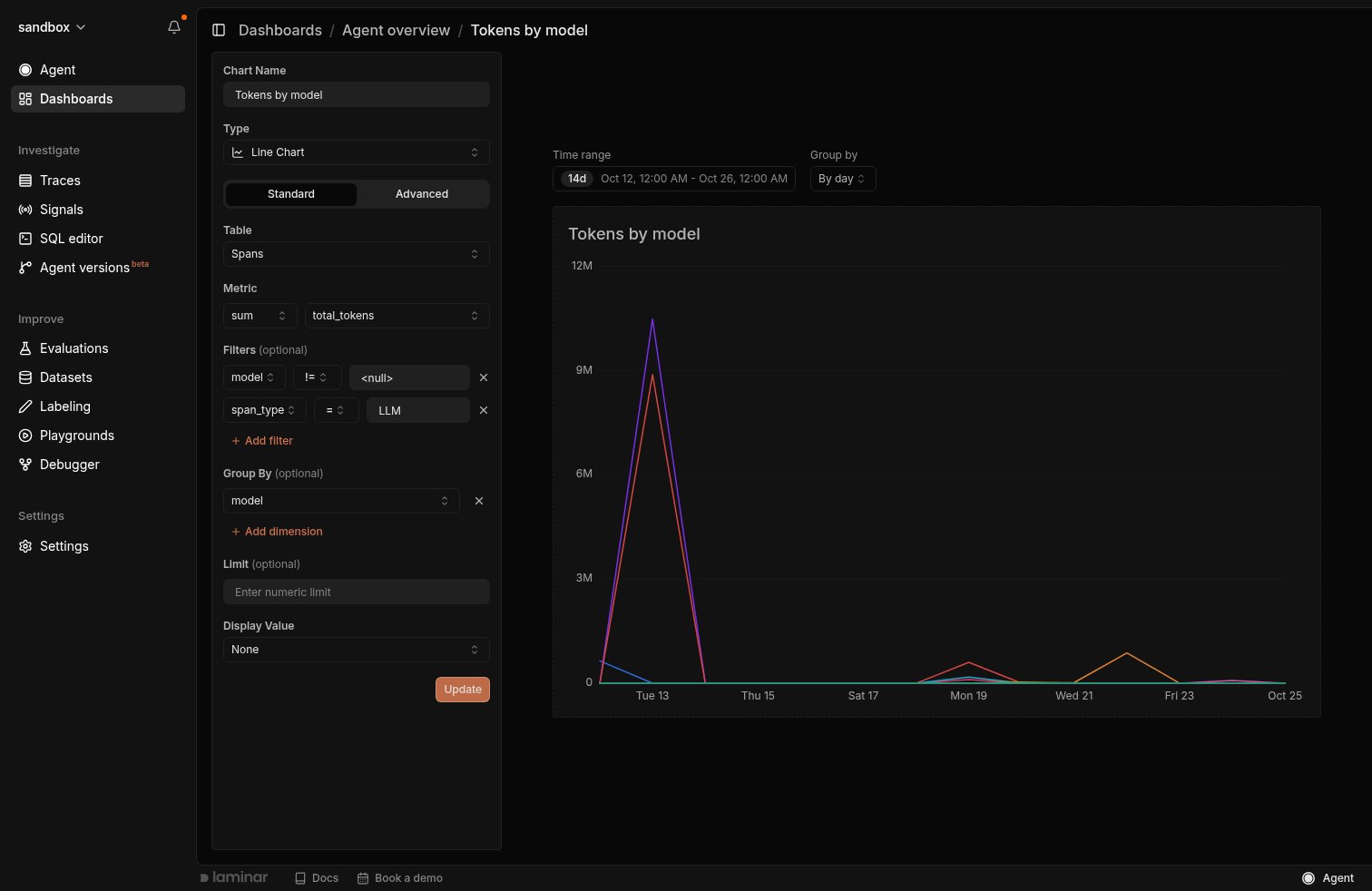
Standard mode: sum of total_tokens on LLM spans, grouped by model.
- Table:
traces,spans, orsignal_events. - Metric:
count,sum,avg,min,max,p90,p95, orp99of a column, or Custom SQL for any expression (see below). Table charts take a list of Columns instead. - Filters: narrow rows before aggregation, for example
span_type = LLM. - Group By: split the metric by a dimension such as
model,provider, orspan_type. Each value becomes its own series. - Order By and Limit: for horizontal bars and tables.
- Display Value: for line and bar charts.
Custom SQL metrics
Pick Custom SQL in the metric dropdown when the built-in aggregations aren’t enough. The editor inserts your expression as<expr> in SELECT <expr> FROM <table> and applies the filters and group-by around it, so write a single aggregate without WHERE or GROUP BY:
- Conditional counts:
countIf(span_type = 'LLM' AND status = 'error'). - Rates:
countIf(status = 'error') / count() * 100for an error rate in percent. - Other percentiles:
quantile(0.75)(duration). - Expressions over several columns:
sum(input_cost + output_cost).
Custom columns on tables
In a table chart, each entry in Columns is either a column or, with Custom SQL, an expression evaluated per row:- Combine fields:
concat(name, ' (', model, ')'). - Read a JSON attribute:
JSONExtractString(attributes, 'gen_ai.request.model'). - Derive a value:
total_tokens / durationfor tokens per second.
column_ab12cd, so reordering or removing other columns doesn’t rename them.
Advanced mode
Advanced mode is a SQL editor. Write any read-only query over the SQL editor tables, includingWITH clauses, joins, and window functions, then map the result columns to the chart.
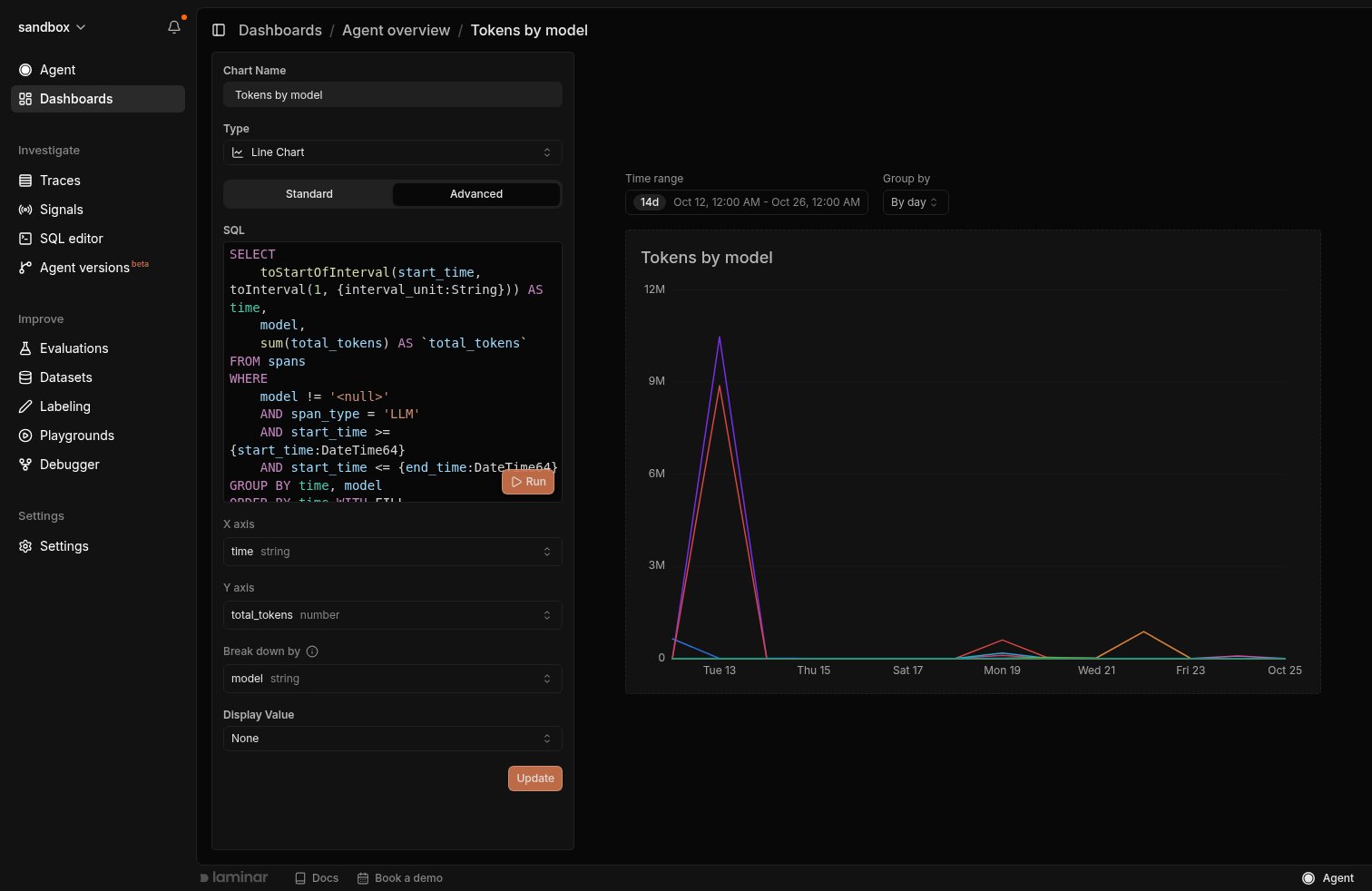
The same chart in Advanced mode: the SQL Standard mode generated, with time on the X axis, total_tokens on the Y axis, and one line per model.
- Write the query and click Run to preview it. The editor also re-runs it when you change the preview’s time range or group-by.
- Map the result columns:
- Line and bar charts: X axis, Y axis, and an optional Break down by column that draws one series per value (for example per model).
- Horizontal bar: Value and Category.
- Table: every column in the result is shown.
- Click Save (Update on an existing chart).
These are the only parameters a dashboard binds. A query that uses any other parameter can’t be run or saved.
This query charts p90 LLM latency per model, one line per model:
time, Y axis to p90_duration, and Break down by to model. WITH FILL adds empty buckets, so the line drops to zero instead of skipping gaps.
Return a trace_id column (and span_id for spans) to make horizontal bars and table rows open the trace when clicked. Table charts page through results on scroll, and that works even if your query has its own LIMIT.
Switch between modes
- Standard to Advanced keeps the chart: the editor opens the SQL that Standard mode generated, ready to edit.
- Advanced to Standard converts the SQL back into form fields when it can. Queries with
WITH,JOIN,HAVING,UNION, window functions, or anything else the form can’t represent can’t be converted; the editor asks before switching, and switching clears your SQL.
Ask Laminar Agent to build a dashboard
Laminar Agent can create dashboards and add, edit, rearrange, or delete charts. Describe what you want to see and it writes the SQL, checks that each query runs, lays out the charts, and replies with a link to the dashboard.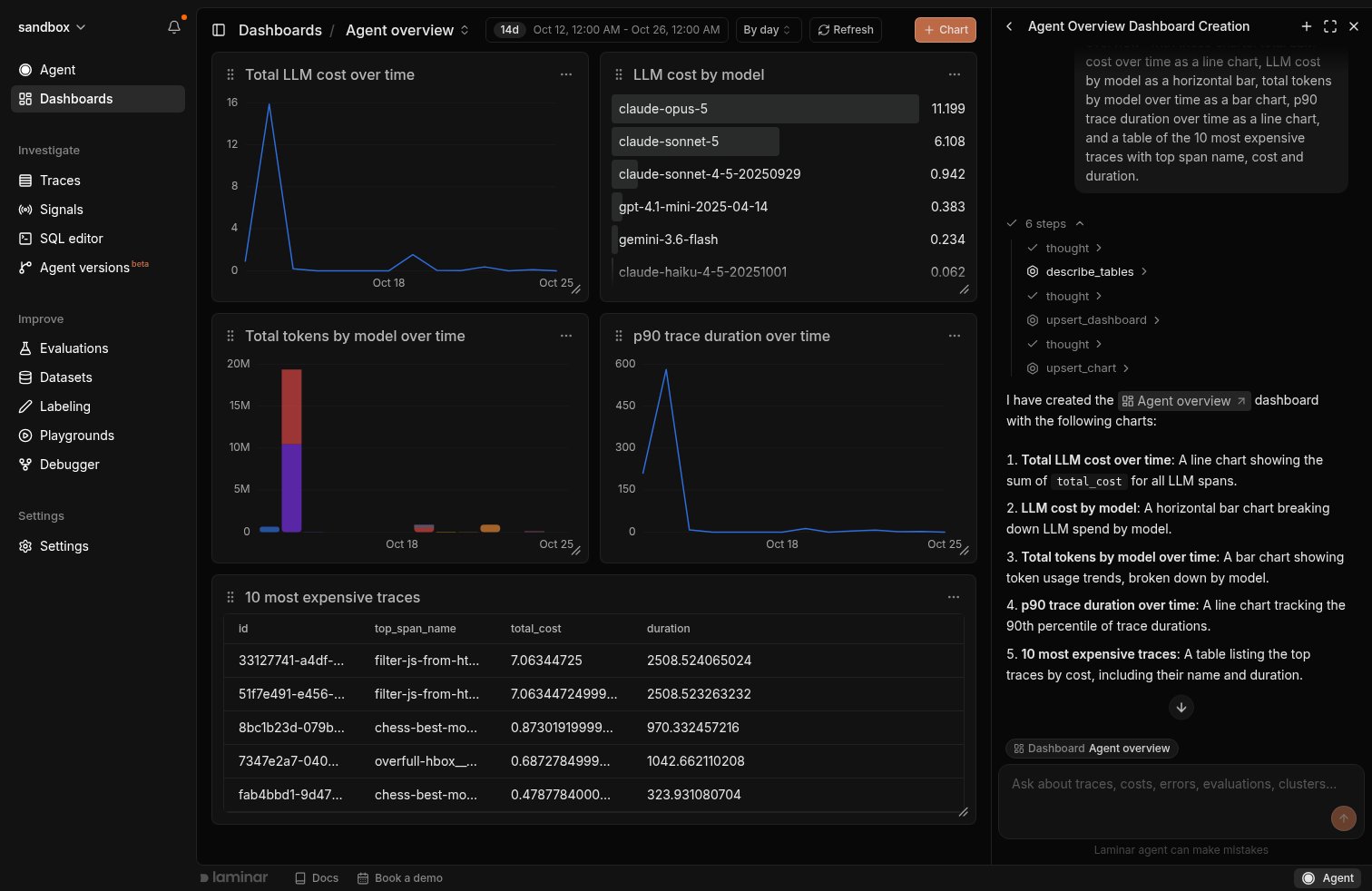
Ask Laminar Agent for a dashboard and it creates the charts, then links to the result.
- “Summarize what this dashboard shows.”
- “Add a chart of LLM cost by model.”
- “Tidy up this dashboard’s layout.”
Read a dashboard
Linked hover across charts
Hover a time-series chart and every other time-series chart on the dashboard highlights the same time bucket, so you can line up a cost spike with the latency or error chart next to it.Click and drag to narrow the time range
Drag across a time-series chart to select a window. When you release, a toolbar shows the window and its length with two actions: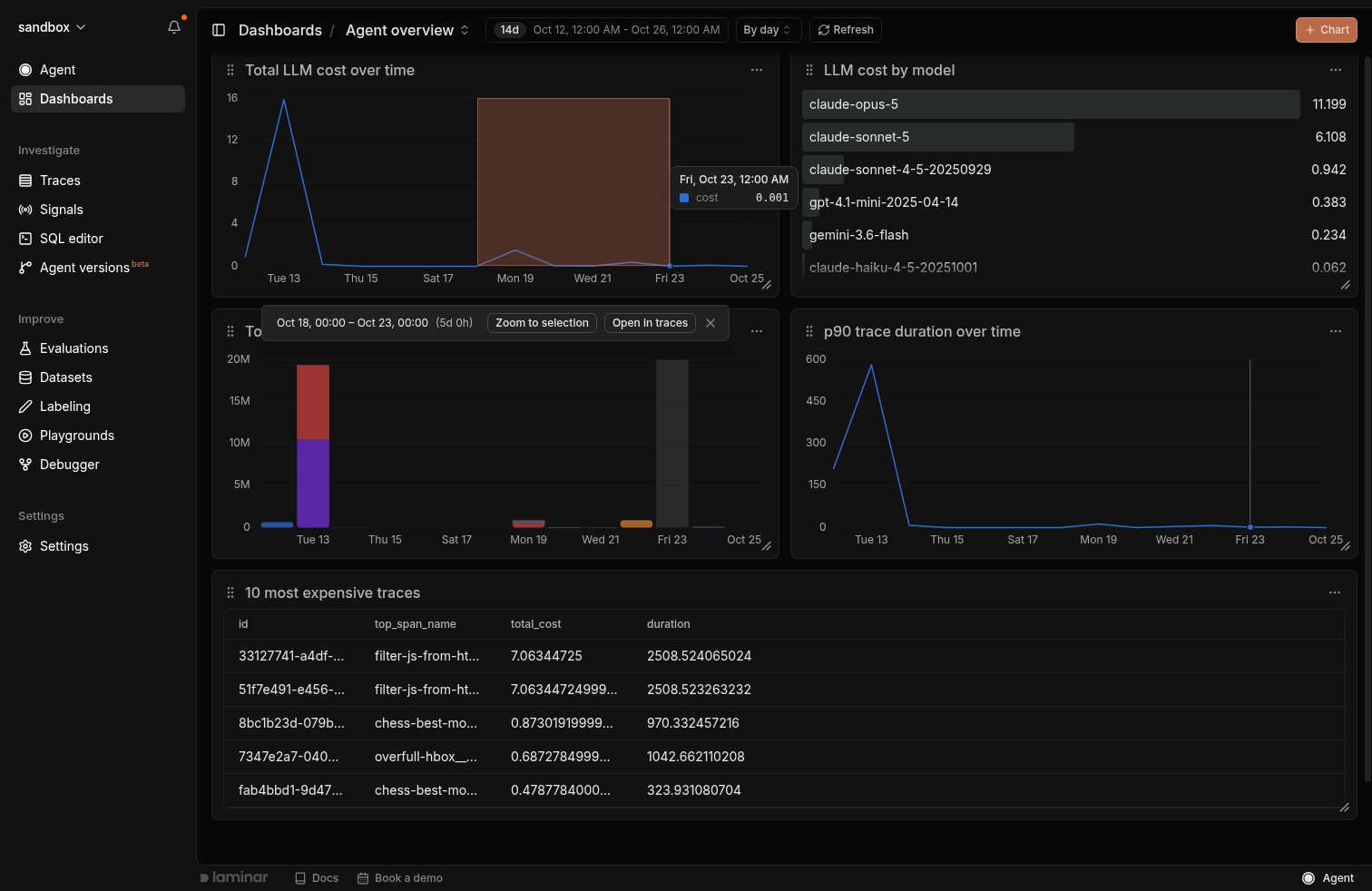
Drag across a chart to select a window, then zoom in or open the matching traces. The other charts highlight the bucket under the cursor.
- Zoom to selection sets the dashboard’s time range to the selected window.
- Open in traces opens the Traces page in a new tab, filtered to the same window.
Open a trace from a chart
Click a horizontal bar, or atrace_id or id cell in a table, to open that trace in a side panel without leaving the dashboard.
Query dashboards with SQL
Dashboards and their charts are queryable as thedashboards and dashboard_charts tables, so you can find which dashboards use a table or column, or export a chart’s SQL.
What’s next
SQL Editor
Tables, columns, and query patterns for Advanced mode charts.
Laminar Agent
Ask questions about your traces and have the agent build dashboards.
Cost tracking
How Laminar computes the LLM cost your charts aggregate.
Signals
Extract outcomes and failures from traces, then chart them.